> ## Documentation Index
> Fetch the complete documentation index at: https://api.globalwebindex.com/docs/llms.txt
> Use this file to discover all available pages before exploring further.
# Slack-Slackbot
## Overview
The GWI Spark MCP server can be connected directly to **Slackbot** using Slack's native MCP Client feature. Once connected, anyone with access to Slackbot in your workspace can ask Spark-style questions and get GWI consumer insights without leaving Slack.
There are two types of actors for this integration:
* **Workspace/Org Admin**: creates the Slack app and registers the GWI Spark MCP server connection.
* **Team Members**: connect to GWI Spark via Slackbot using their GWI account.
Reference: [Slack official doc — Connecting an MCP server to the Slackbot MCP Client](https://docs.slack.dev/ai/slackbot-mcp-client/)
Slackbot (including its MCP client) requires a Slack **Business+** or **Enterprise+** plan. On Business+, each member is limited to **15 messages to Slackbot per week**. Enterprise+ has no published message cap.
## How to use
### Workspace/Org Admin
1. Go to `api.slack.com/apps` and create a new app (or use an existing one) for your workspace.
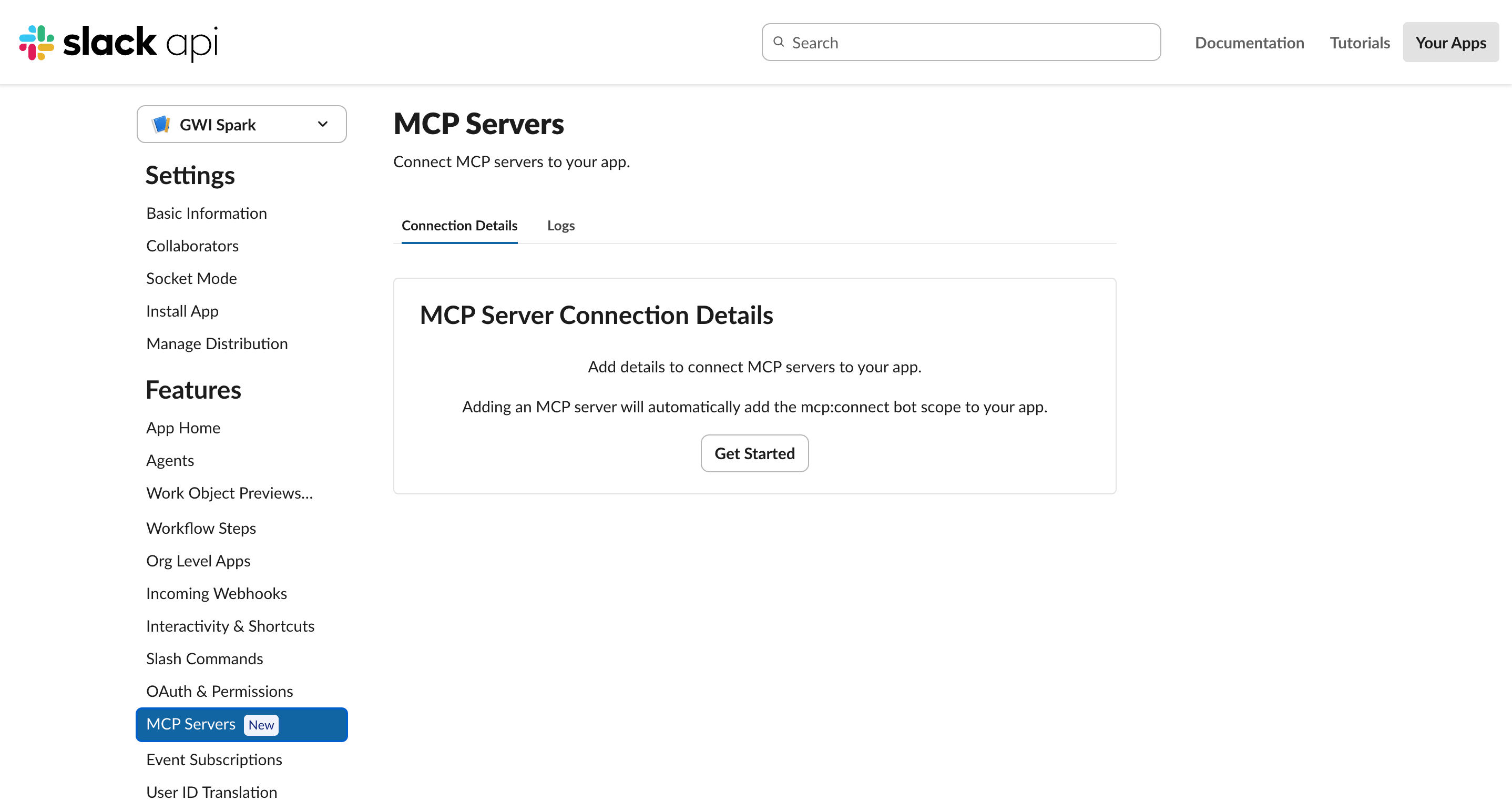
2. In the left sidebar, go to `Features -> MCP Servers` and click `Get Started`.
 3. Enter the connection details:
* **Name**: `GWI Spark`
* **URL**: `https://api.globalwebindex.com/v1/spark-api/mcp`
* **Auth type**: `Dynamic Client Registration`
* **Identify URL:** Leave blank
* **Account Identifier:** Leave blank
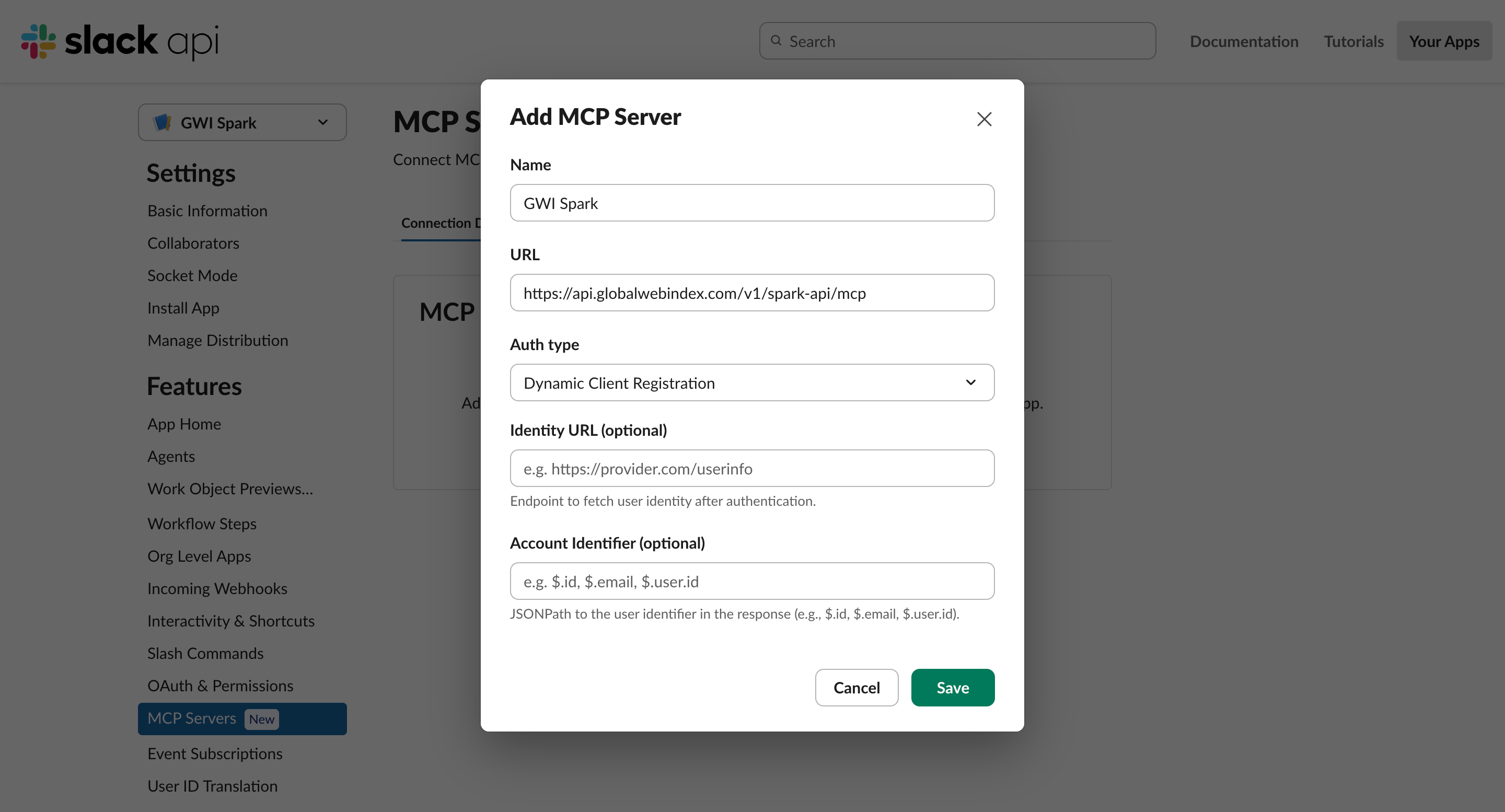
3. Enter the connection details:
* **Name**: `GWI Spark`
* **URL**: `https://api.globalwebindex.com/v1/spark-api/mcp`
* **Auth type**: `Dynamic Client Registration`
* **Identify URL:** Leave blank
* **Account Identifier:** Leave blank
 If Dynamic Client Registration doesn't complete successfully, switch to **Manual OAuth** and enter GWI's OAuth authorization URL, token URL, and client credentials instead. Contact your GWI account team if you need these values.
4. Save. This automatically adds the `mcp:connect` bot scope to the app.
5. Install (or reinstall) the app to your workspace under `OAuth & Permissions -> Install to Workspace`.
If your workspace has **app approval** turned on, changing the app's permission scopes (which happens automatically when you add or edit an MCP server) means you can't self-install anymore. Instead of an "Install" button, you'll see **Request to Workspace Install**. Clicking it sends an approval request to a workspace Owner/Admin, and the Bot User OAuth Token only regenerates once they approve it. Budget time for this step, it isn't instant.
6. If your organization is on **Enterprise Grid**, install the app at the **org level** (`Org Level Apps`) rather than a single workspace, so it's available to everyone who needs it.
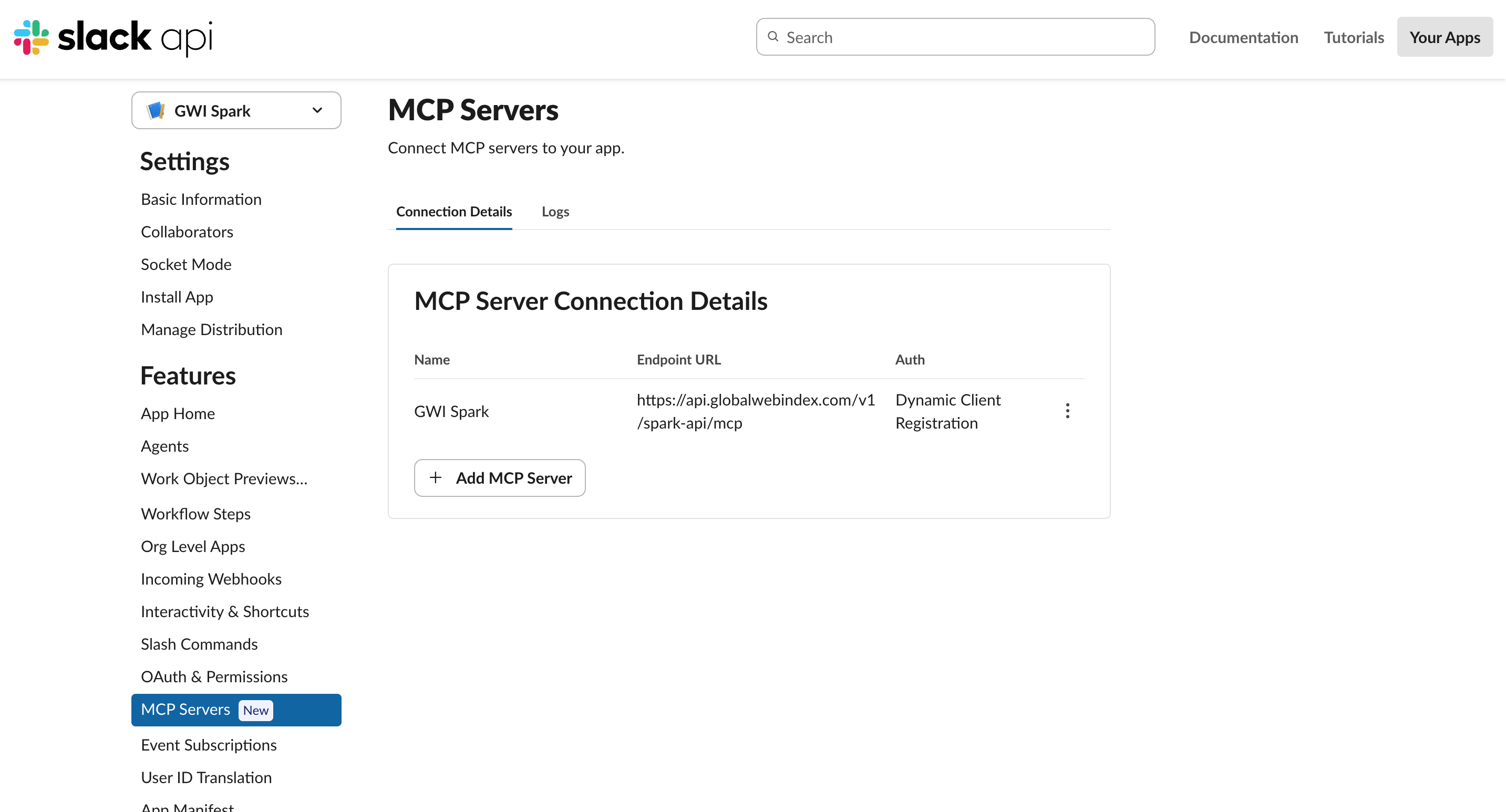
7. After installing, you should be able to see `GWI Spark` listed under **MCP Server Connection Details**.
If Dynamic Client Registration doesn't complete successfully, switch to **Manual OAuth** and enter GWI's OAuth authorization URL, token URL, and client credentials instead. Contact your GWI account team if you need these values.
4. Save. This automatically adds the `mcp:connect` bot scope to the app.
5. Install (or reinstall) the app to your workspace under `OAuth & Permissions -> Install to Workspace`.
If your workspace has **app approval** turned on, changing the app's permission scopes (which happens automatically when you add or edit an MCP server) means you can't self-install anymore. Instead of an "Install" button, you'll see **Request to Workspace Install**. Clicking it sends an approval request to a workspace Owner/Admin, and the Bot User OAuth Token only regenerates once they approve it. Budget time for this step, it isn't instant.
6. If your organization is on **Enterprise Grid**, install the app at the **org level** (`Org Level Apps`) rather than a single workspace, so it's available to everyone who needs it.
7. After installing, you should be able to see `GWI Spark` listed under **MCP Server Connection Details**.
 ### Team Member
1. Open a direct message with **Slackbot** (not the GWI Spark app itself).
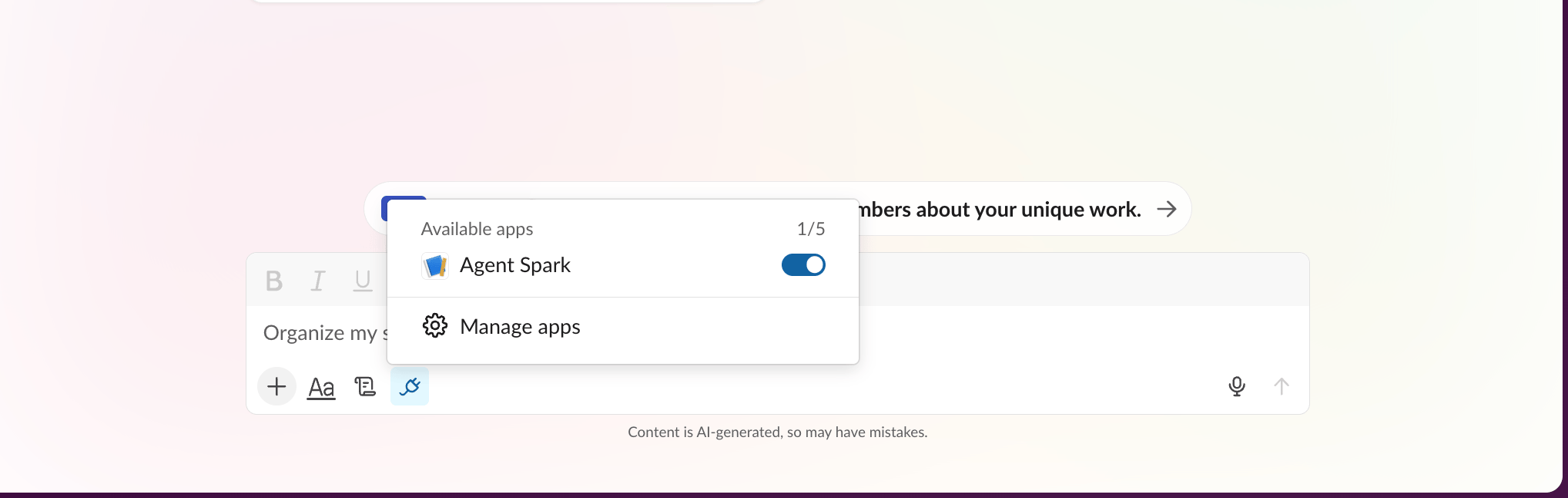
2. Click the **Apps** icon in the message toolbar and find **GWI Spark** under **Available**.
### Team Member
1. Open a direct message with **Slackbot** (not the GWI Spark app itself).
2. Click the **Apps** icon in the message toolbar and find **GWI Spark** under **Available**.
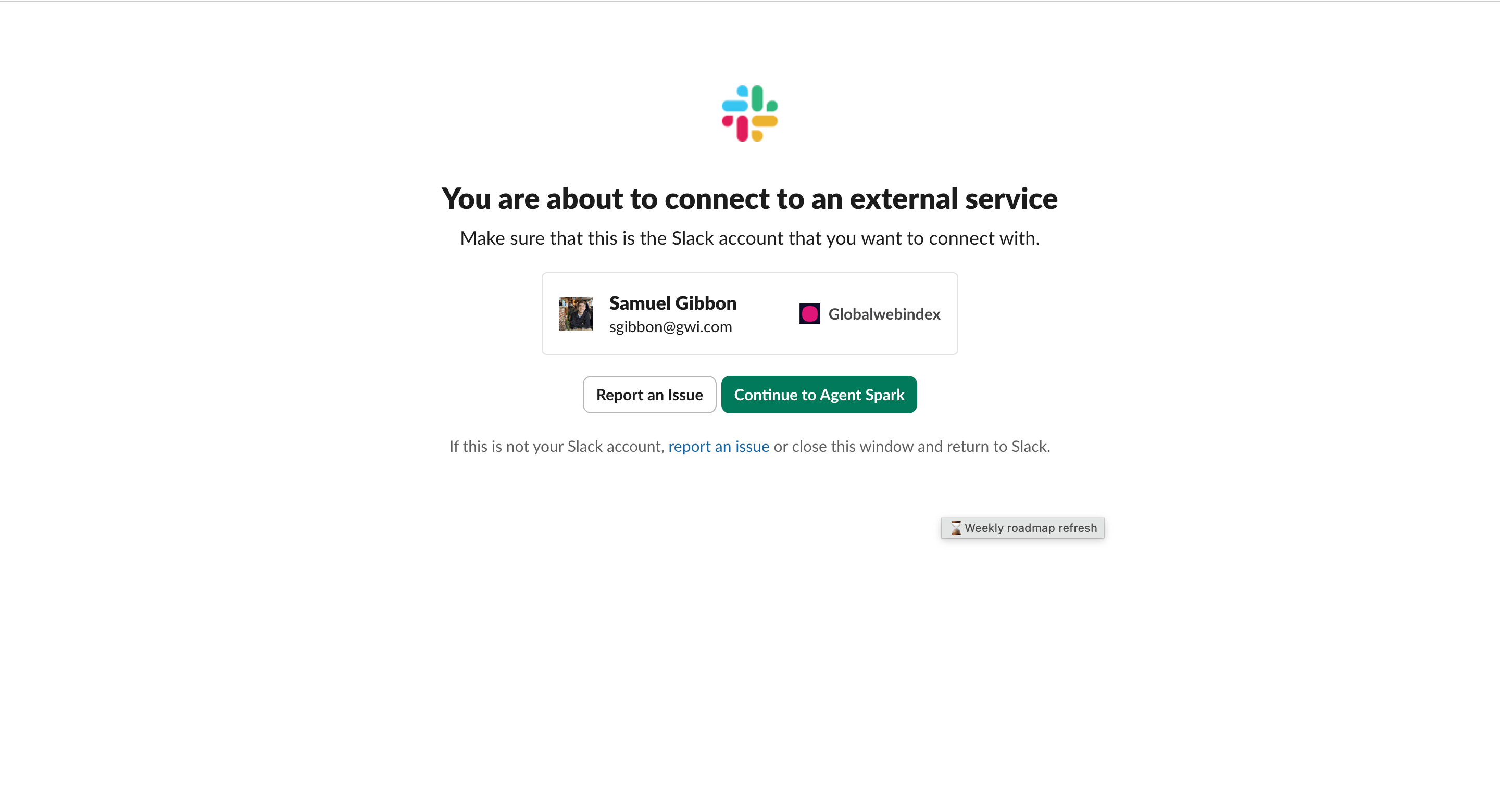
 3. Click to connect. You'll be redirected to the **GWI sign-in page** — use your GWI credentials to sign in. **If you don't have a GWI login, click Sign up to create one.**
4. Review the requested permissions and click **Allow**.
3. Click to connect. You'll be redirected to the **GWI sign-in page** — use your GWI credentials to sign in. **If you don't have a GWI login, click Sign up to create one.**
4. Review the requested permissions and click **Allow**.
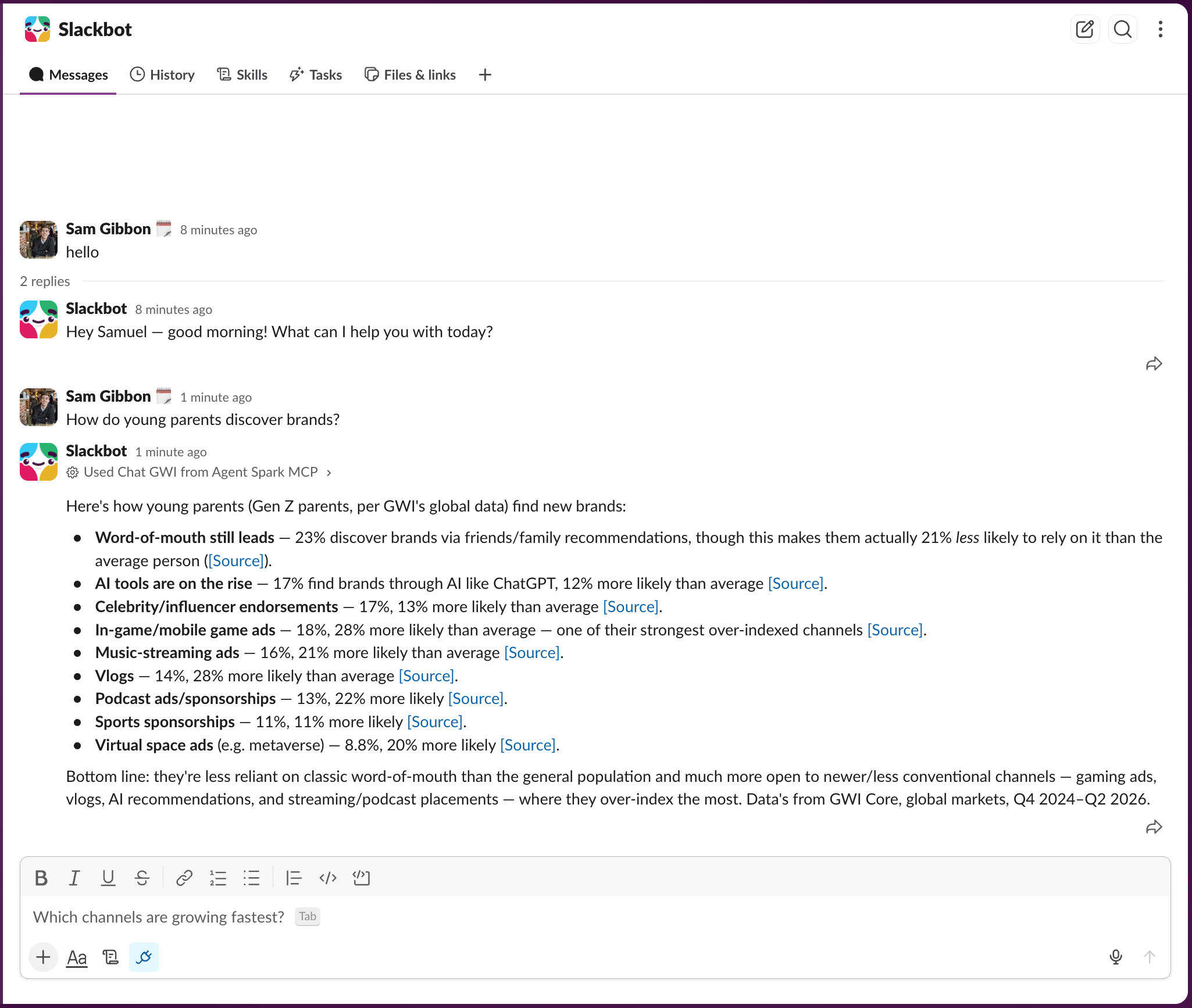
 5. Once connected, ask Slackbot a Spark-style question directly, e.g. *"What tools are available from GWI Spark?"* or *"How do young parents discover brands?"*
 ## Troubleshooting
* **App not visible to Slackbot**: Confirm the app has the `mcp:connect` bot scope (this is added automatically when the MCP server is saved) and that you've reinstalled the app since the most recent config change. On Enterprise Grid, confirm the app is installed at the org level, not just a single workspace.
* **"Request to Workspace Install" instead of a normal install button**: This means app approval is enabled for the workspace. Scope changes now require a workspace Owner/Admin to approve the request before a new OAuth token generates. Until that approval happens, the app isn't actually reinstalled, so Slackbot won't see the updated MCP server config.
* **OAuth errors**: If Dynamic Client Registration fails, switch to Manual OAuth. Check `Features -> MCP Servers -> Logs` for the specific connection error before assuming the problem is on Slack's side.
* **Access denied during sign-in**: Confirm with your GWI contact that your email address or domain is enabled for your organization's Spark MCP access.
* **Slackbot won't respond / message limit reached**: Business+ workspaces are capped at 15 Slackbot messages per user per week, reset every Monday. This limit is shared across all of Slackbot's uses, not just GWI Spark queries.
## Troubleshooting
* **App not visible to Slackbot**: Confirm the app has the `mcp:connect` bot scope (this is added automatically when the MCP server is saved) and that you've reinstalled the app since the most recent config change. On Enterprise Grid, confirm the app is installed at the org level, not just a single workspace.
* **"Request to Workspace Install" instead of a normal install button**: This means app approval is enabled for the workspace. Scope changes now require a workspace Owner/Admin to approve the request before a new OAuth token generates. Until that approval happens, the app isn't actually reinstalled, so Slackbot won't see the updated MCP server config.
* **OAuth errors**: If Dynamic Client Registration fails, switch to Manual OAuth. Check `Features -> MCP Servers -> Logs` for the specific connection error before assuming the problem is on Slack's side.
* **Access denied during sign-in**: Confirm with your GWI contact that your email address or domain is enabled for your organization's Spark MCP access.
* **Slackbot won't respond / message limit reached**: Business+ workspaces are capped at 15 Slackbot messages per user per week, reset every Monday. This limit is shared across all of Slackbot's uses, not just GWI Spark queries.