> ## Documentation Index
> Fetch the complete documentation index at: https://api.globalwebindex.com/docs/llms.txt
> Use this file to discover all available pages before exploring further.
# Gemini Enterprise
> Connect GWI Spark MCP to Google Gemini Enterprise using the production v1 MCP endpoint.
## Overview
Connect **GWI Spark MCP** to **Google Gemini Enterprise** as a custom MCP server data store. This guide uses the **v1** production MCP endpoint.
Contact GWI to obtain your OAuth **Client ID** and **Client Secret**. Gemini Enterprise does not yet support Dynamic Client Registration (DCR), so credentials are provisioned and shared with you manually.
Reference: [Google — Set up your custom MCP server data store](https://docs.cloud.google.com/gemini/enterprise/docs/connectors/custom-mcp-server/set-up-custom-mcp-server)
**Terms (Google):** data store ≈ connector · MCP tools ≈ Gemini actions.
## How to use this guide
1. Open [Google’s setup guide](https://docs.cloud.google.com/gemini/enterprise/docs/connectors/custom-mcp-server/set-up-custom-mcp-server) side by side with this page.
2. Complete each step in the Gemini Enterprise console.
3. When a field needs a value, copy from the **Production values** table below.
4. Screenshots show the UI at each step.
## Production values
| Field | Value |
| - | - |
| MCP Server URL | `https://api.globalwebindex.com/v1/spark-api/mcp` |
| Authorization URL | `https://auth.globalwebindex.com/oauth2/authorize` |
| Authorization URL Parameters | *(leave blank)* |
| Token URL | `https://auth.globalwebindex.com/oauth2/token` |
| Client ID | Contact GWI support for your Client ID |
| Client Secret | Contact GWI support for your Client Secret |
| Enable PKCE Support | **Off** (unchecked) |
| Scopes | `openid profile email offline_access` |
| Authentication | **OAuth 2.0** |
## Setup walkthrough
Follow the steps below in the **Gemini Enterprise** console. They mirror [Google’s setup guide](https://docs.cloud.google.com/gemini/enterprise/docs/connectors/custom-mcp-server/set-up-custom-mcp-server); when a form asks for URLs or OAuth settings, use the **Production values** table above.
### Create the custom MCP server data store
Maps to Google: [Create the custom MCP server data store](https://docs.cloud.google.com/gemini/enterprise/docs/connectors/custom-mcp-server/set-up-custom-mcp-server#create_the_custom_mcp_server_data_store).
#### 1. Data stores list
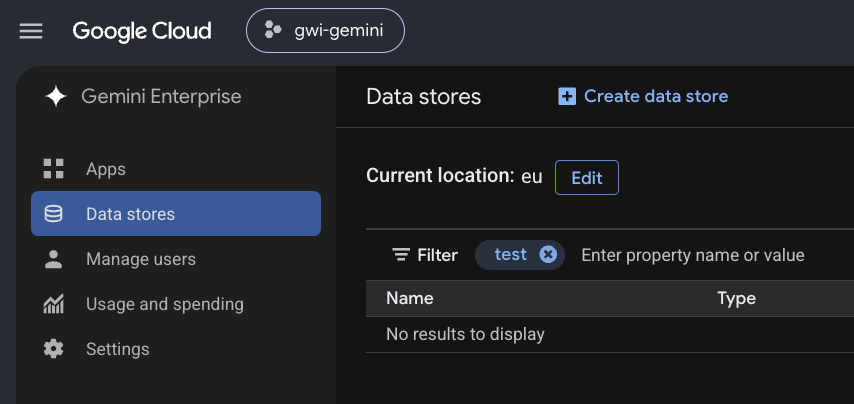
1. Gemini Enterprise → **Data stores**
2. Confirm **Current location** (for example `eu`) — edit if your org requires another multi-region
3. Click **+ Create data store**
 #### 2. Select source
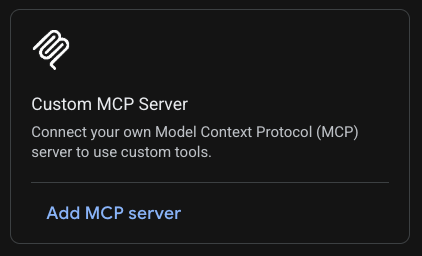
1. Search sources → type `Custom MCP Server`
2. On the **Custom MCP Server** card → **Add MCP server**
#### 2. Select source
1. Search sources → type `Custom MCP Server`
2. On the **Custom MCP Server** card → **Add MCP server**
 #### 3. Authentication — OAuth 2.0
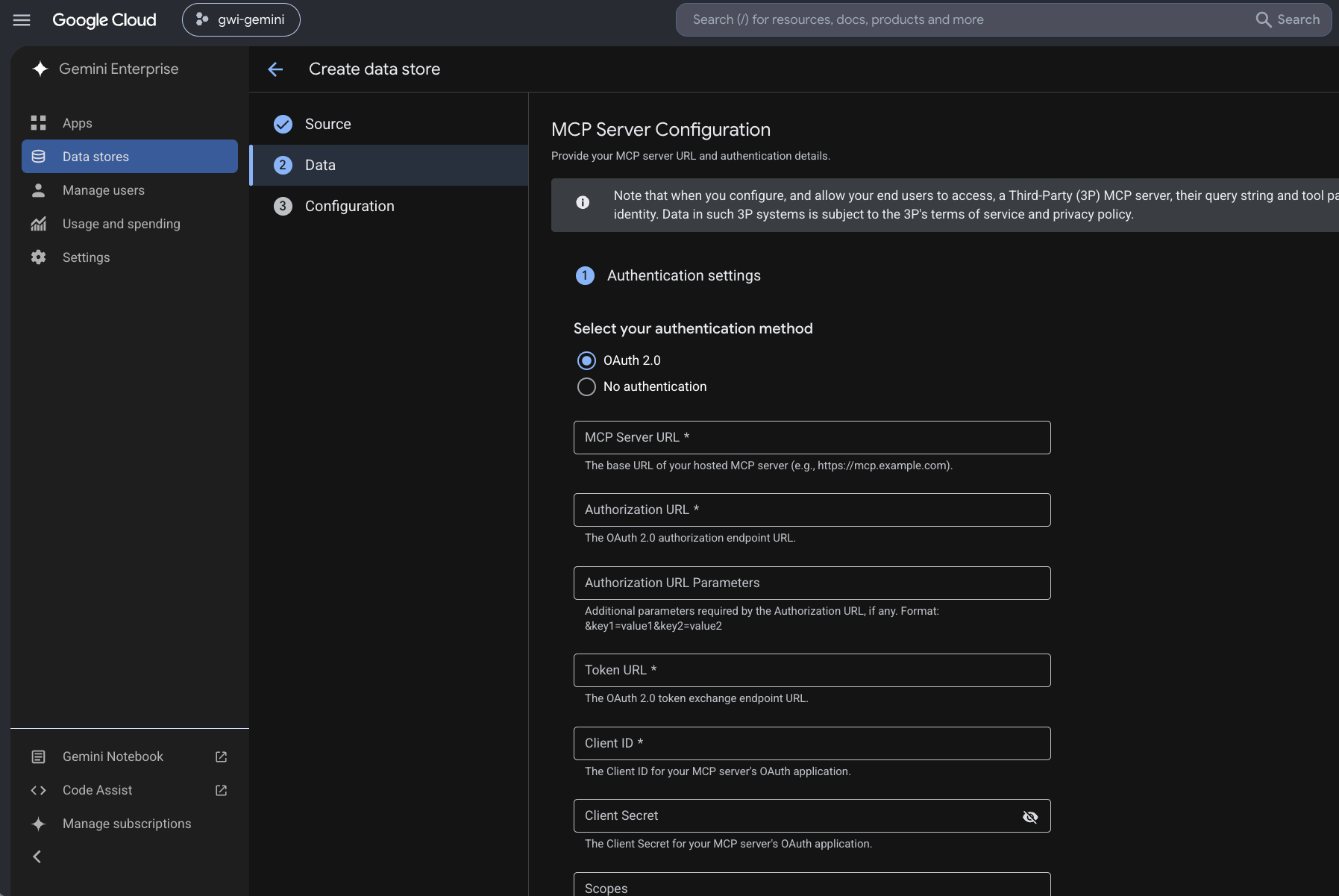
1. Select **OAuth 2.0**
2. Fill the form from **Production values** (table above).
#### 3. Authentication — OAuth 2.0
1. Select **OAuth 2.0**
2. Fill the form from **Production values** (table above).
 3. If **Enable PKCE Support** appears → leave **unchecked**
4. Click **Verify Auth**
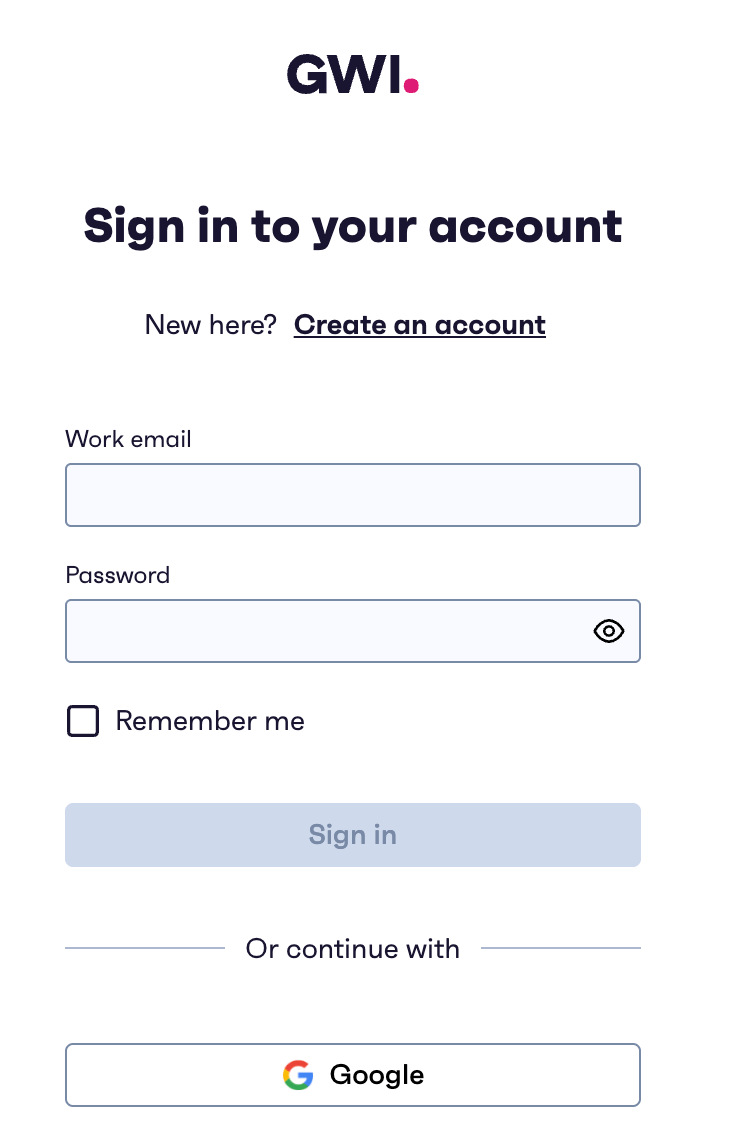
5. A **GWI sign-in** popup opens → sign in with your work account
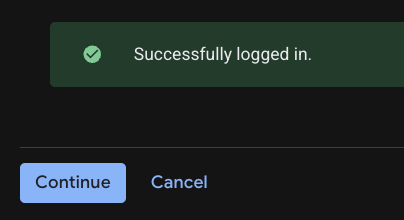
6. Expect **Successfully logged in.** → click **Continue** on that success panel
7. Back on the MCP form → **Continue** (wizard)
3. If **Enable PKCE Support** appears → leave **unchecked**
4. Click **Verify Auth**
5. A **GWI sign-in** popup opens → sign in with your work account
6. Expect **Successfully logged in.** → click **Continue** on that success panel
7. Back on the MCP form → **Continue** (wizard)
 #### 4. Configure your data connector → Create
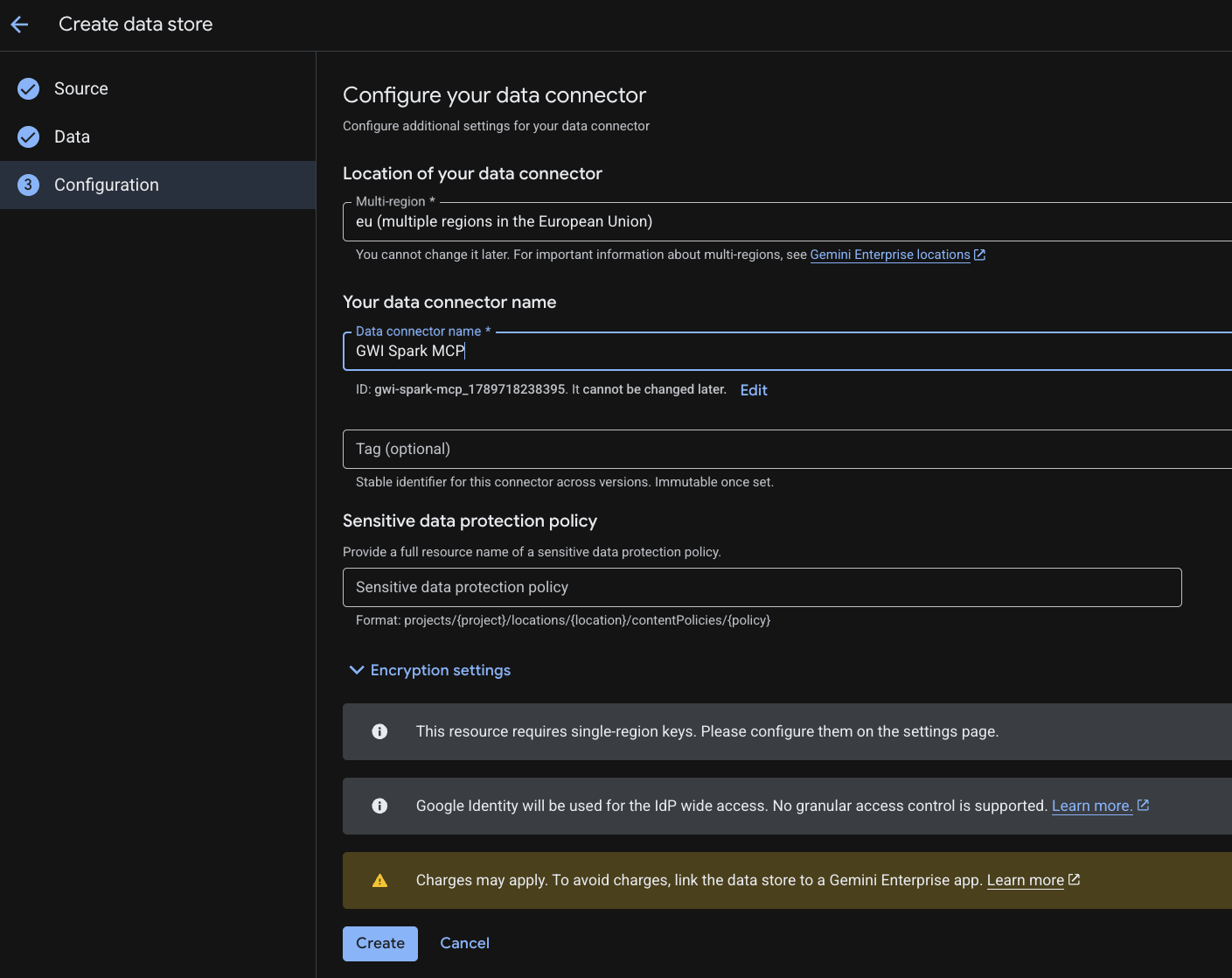
1. **Multi-region / Location** — pick the location for this connector (for example `eu`). **Cannot change later.**
2. **Data connector name** — the name you’ll use to recognize the connector (for example `GWI Spark MCP`)
3. **Tag** (optional) — stable identifier across versions; immutable once set
4. Other optional fields (sensitive-data policy, encryption) — leave unless your org requires them
5. Click **Create**
6. Wait until the data store state is **Active** (Creating → Active)
#### 4. Configure your data connector → Create
1. **Multi-region / Location** — pick the location for this connector (for example `eu`). **Cannot change later.**
2. **Data connector name** — the name you’ll use to recognize the connector (for example `GWI Spark MCP`)
3. **Tag** (optional) — stable identifier across versions; immutable once set
4. Other optional fields (sensitive-data policy, encryption) — leave unless your org requires them
5. Click **Create**
6. Wait until the data store state is **Active** (Creating → Active)
 #### 5. Wait for Active, then enable actions
Maps to Google: [Enable actions](https://docs.cloud.google.com/gemini/enterprise/docs/connectors/custom-mcp-server/set-up-custom-mcp-server#enable-actions).
After **Create**, open the data store. Connector state may show **Creating** briefly — wait until **Active**.
#### 5. Wait for Active, then enable actions
Maps to Google: [Enable actions](https://docs.cloud.google.com/gemini/enterprise/docs/connectors/custom-mcp-server/set-up-custom-mcp-server#enable-actions).
After **Create**, open the data store. Connector state may show **Creating** briefly — wait until **Active**.
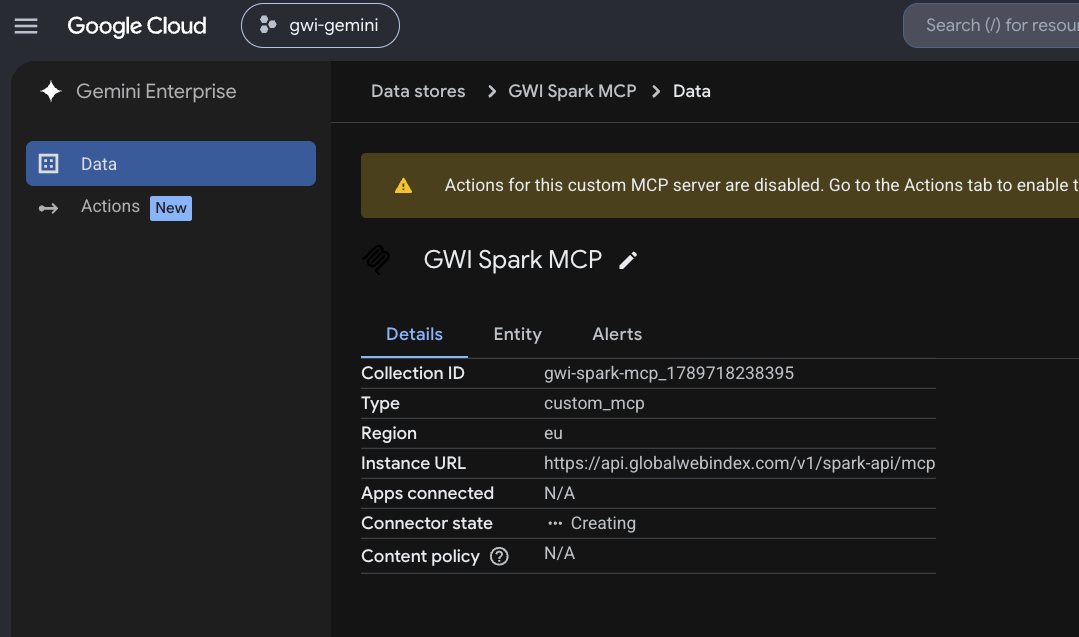 If a yellow banner says actions are disabled, go to **Actions**:
1. Left nav (or banner) → **Actions**
2. **Reload custom actions** (reauth / `tools/list` if prompted)
3. Select the actions (tools) to enable — Google limit: up to **100** at a time
4. **Enable actions**
If a yellow banner says actions are disabled, go to **Actions**:
1. Left nav (or banner) → **Actions**
2. **Reload custom actions** (reauth / `tools/list` if prompted)
3. Select the actions (tools) to enable — Google limit: up to **100** at a time
4. **Enable actions**

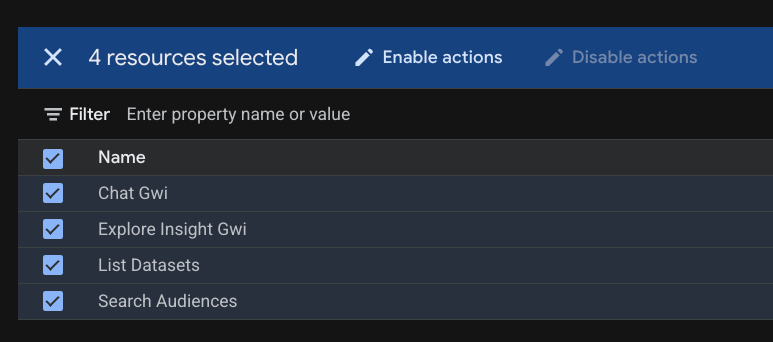 Available actions may differ from the screenshot at any time as GWI updates Spark MCP. After **Reload custom actions**, enable **all** listed actions so the connector behaves as expected in chat.
### Connect the data store to your Gemini app
Creating the data store is **not** enough — it must be linked to a Gemini Enterprise **app**.
Maps to Google: [Connect a data store to an app](https://docs.cloud.google.com/gemini/enterprise/docs/connectors/connect-existing-data-store#connect_a_data_store_to_an_app).
#### 6a. Create an app if you don’t have one
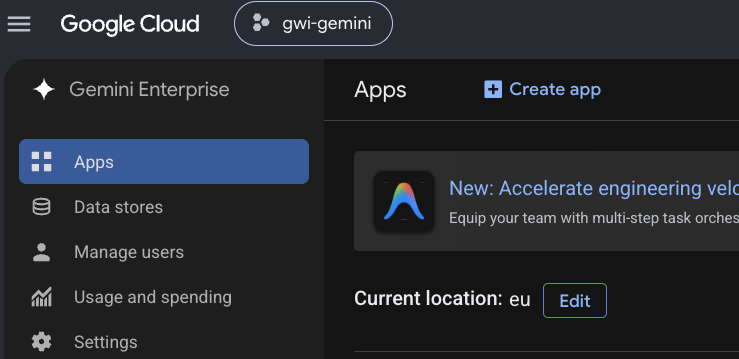
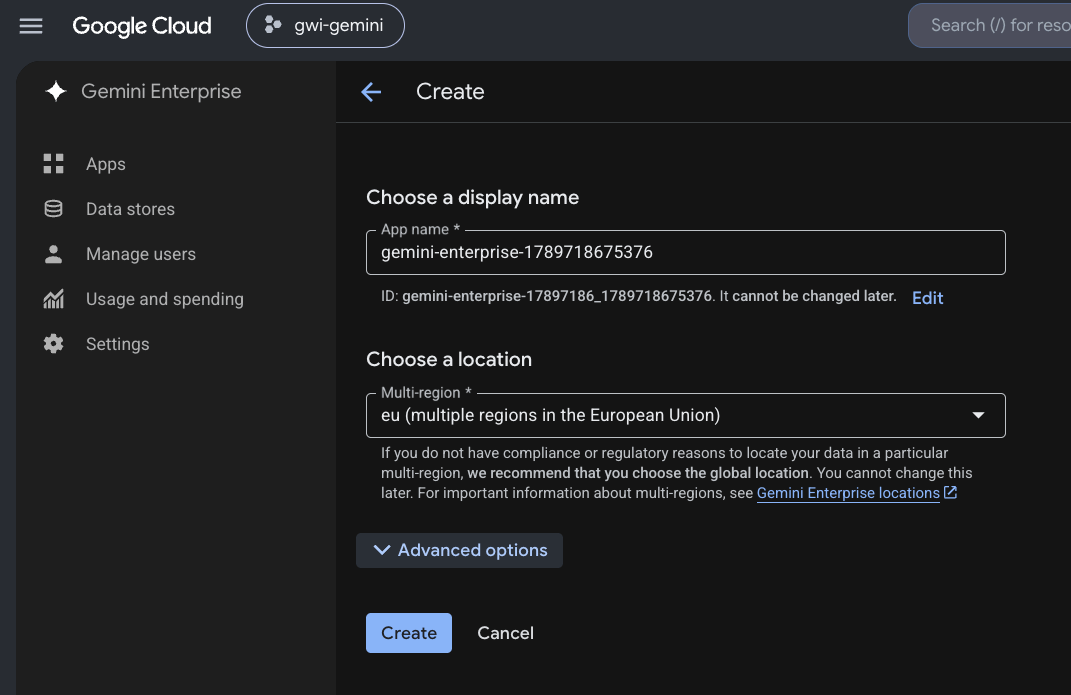
1. Gemini Enterprise → **Apps** → **+ Create app**
2. Set display name and location (same multi-region as the data store if possible, for example `eu`) → **Create**
Available actions may differ from the screenshot at any time as GWI updates Spark MCP. After **Reload custom actions**, enable **all** listed actions so the connector behaves as expected in chat.
### Connect the data store to your Gemini app
Creating the data store is **not** enough — it must be linked to a Gemini Enterprise **app**.
Maps to Google: [Connect a data store to an app](https://docs.cloud.google.com/gemini/enterprise/docs/connectors/connect-existing-data-store#connect_a_data_store_to_an_app).
#### 6a. Create an app if you don’t have one
1. Gemini Enterprise → **Apps** → **+ Create app**
2. Set display name and location (same multi-region as the data store if possible, for example `eu`) → **Create**
 #### 6b. Connect the existing Spark MCP data store
1. On **Apps**, find your app → under **Connected data stores** click **view**
2. **Add existing data stores**
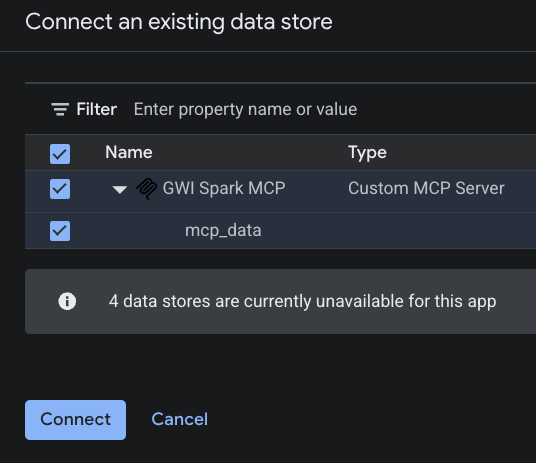
3. In **Connect an existing data store**, select **GWI Spark MCP** (Custom MCP Server) → **Connect**
4. You should see **GWI Spark MCP** · Custom MCP Server · **Active**
### Authorize and activate the connector (first use)
Maps to Google: [User authorization](https://docs.cloud.google.com/gemini/enterprise/docs/connectors/connect-existing-data-store#user_authorization).
Required before tools work in chat.
1. Open the **Gemini Enterprise** web app (URL from the app overview)
2. In the prompt bar, open the **connector/tools** control (near `+`)
3. Find **GWI Spark MCP** — if it shows **Authorise** / **Authorize**, complete GWI sign-in
4. Switch the connector **toggle on** (activate)
#### 6b. Connect the existing Spark MCP data store
1. On **Apps**, find your app → under **Connected data stores** click **view**
2. **Add existing data stores**
3. In **Connect an existing data store**, select **GWI Spark MCP** (Custom MCP Server) → **Connect**
4. You should see **GWI Spark MCP** · Custom MCP Server · **Active**
### Authorize and activate the connector (first use)
Maps to Google: [User authorization](https://docs.cloud.google.com/gemini/enterprise/docs/connectors/connect-existing-data-store#user_authorization).
Required before tools work in chat.
1. Open the **Gemini Enterprise** web app (URL from the app overview)
2. In the prompt bar, open the **connector/tools** control (near `+`)
3. Find **GWI Spark MCP** — if it shows **Authorise** / **Authorize**, complete GWI sign-in
4. Switch the connector **toggle on** (activate)
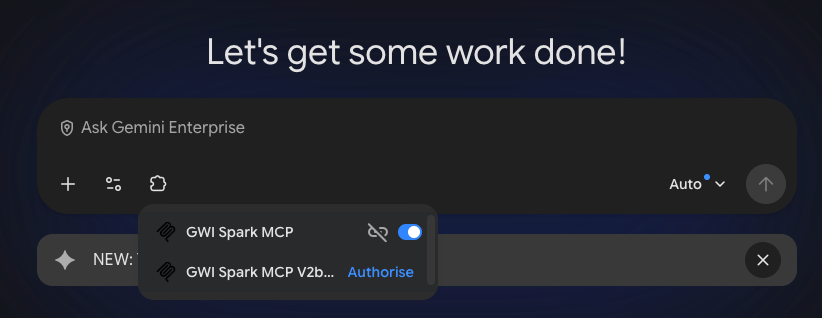 Without authorize and toggle-on, the connector can appear but tools won’t run.
### Using the connector
Maps to Google: [Authorize your connected services](https://docs.cloud.google.com/gemini/enterprise/docs/assistant-use-actions#authorize-data-source).
Once connected, authorized, and toggled **on**:
1. In Gemini Enterprise chat, make sure **GWI Spark MCP** is active (connector/tools panel)
2. Ask in natural language and name the connector if helpful, for example:
`Using GWI Spark MCP, give me insights about pet owners and their shopping habits.`
3. The assistant should call enabled actions and answer with sources
For the **v2beta** MCP profile (different endpoint and tool set), switch the docs version to **v2beta** and use [Gemini Enterprise](/docs/spark-mcp/v2beta/integration-guide/gemini-enterprise/guide).
Without authorize and toggle-on, the connector can appear but tools won’t run.
### Using the connector
Maps to Google: [Authorize your connected services](https://docs.cloud.google.com/gemini/enterprise/docs/assistant-use-actions#authorize-data-source).
Once connected, authorized, and toggled **on**:
1. In Gemini Enterprise chat, make sure **GWI Spark MCP** is active (connector/tools panel)
2. Ask in natural language and name the connector if helpful, for example:
`Using GWI Spark MCP, give me insights about pet owners and their shopping habits.`
3. The assistant should call enabled actions and answer with sources
For the **v2beta** MCP profile (different endpoint and tool set), switch the docs version to **v2beta** and use [Gemini Enterprise](/docs/spark-mcp/v2beta/integration-guide/gemini-enterprise/guide).