> ## Documentation Index
> Fetch the complete documentation index at: https://api.globalwebindex.com/docs/llms.txt
> Use this file to discover all available pages before exploring further.
# Copilot Studio
## Overview
The GWI MCP server integrates with Microsoft Copilot Studio using the MCP onboarding wizard. This enables agents to access GWI consumer insights data through OAuth 2.0 authentication.
Reference: [Copilot Studio MCP official documentation](https://learn.microsoft.com/en-us/microsoft-copilot-studio/mcp-create-new-server)
## Setting Up GWI MCP Tool in Agent Builder
1. Open your agent, navigate to the **Tools** page, and select **New tool** 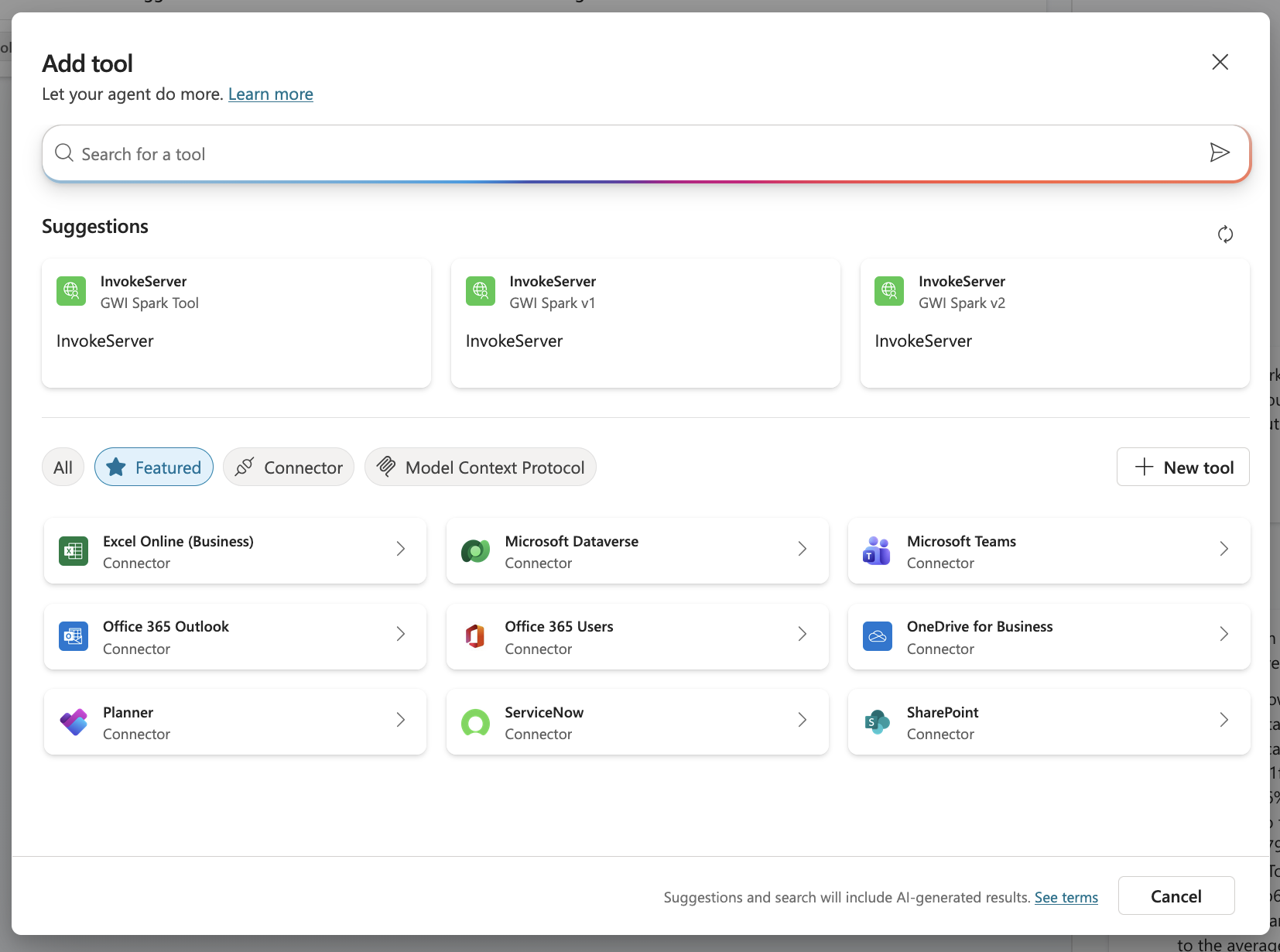 2. Select **Model Context Protocol**:
 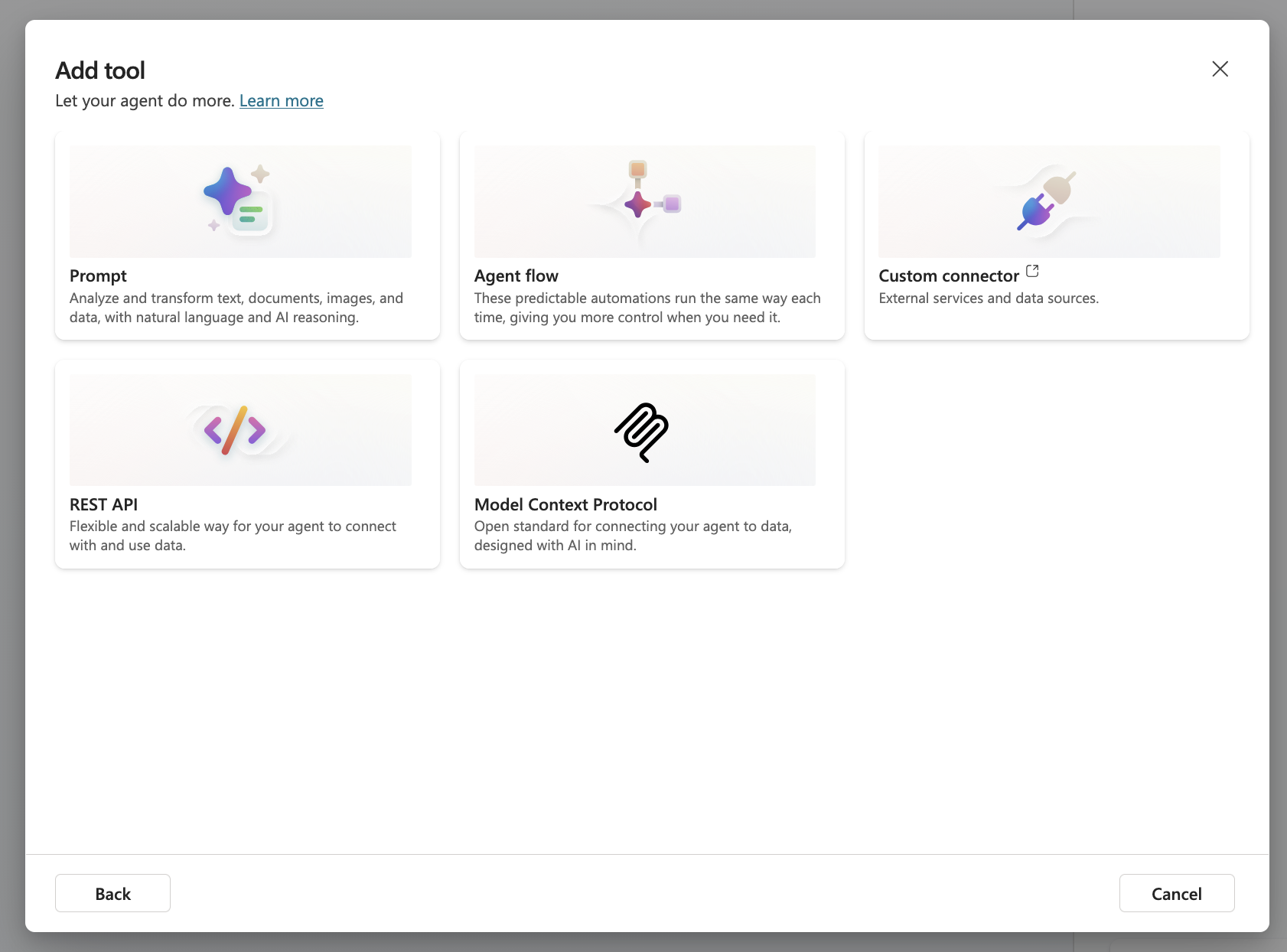 3. Configure the MCP server details, ensuring the URL is correct
 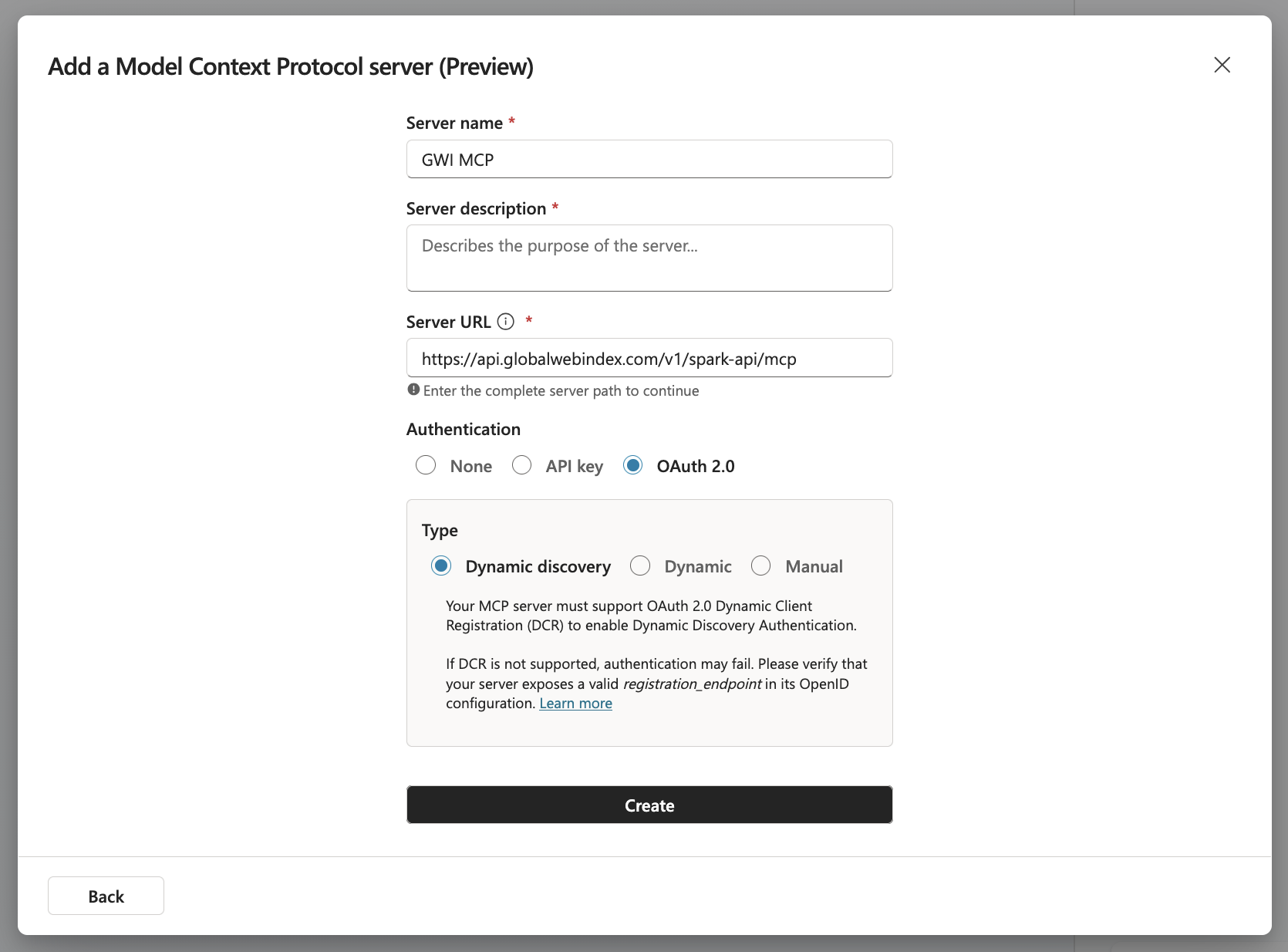 * **Server Description**: Uncover instant insights from real humans across 50+ global markets
* **Server URL**: `https://api.globalwebindex.com/v1/spark-api/mcp`
4. Select **OAuth 2.0** as the authentication type and **Dynamic discovery** as the OAuth 2.0 type
5. Create a connection. You will be redirected to the GWI sign-in page. Use your GWI credentials to sign in.
* **Server Description**: Uncover instant insights from real humans across 50+ global markets
* **Server URL**: `https://api.globalwebindex.com/v1/spark-api/mcp`
4. Select **OAuth 2.0** as the authentication type and **Dynamic discovery** as the OAuth 2.0 type
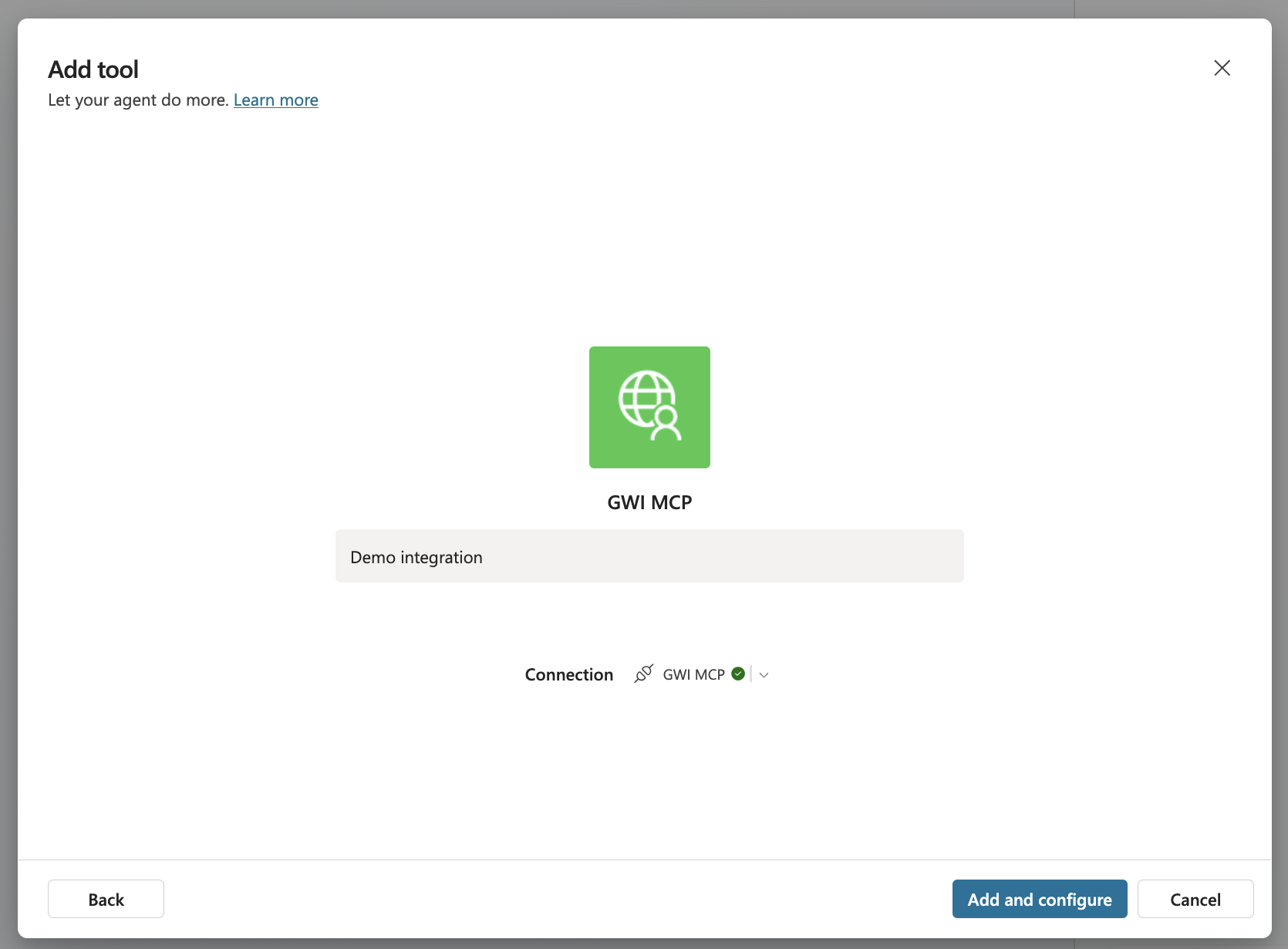
5. Create a connection. You will be redirected to the GWI sign-in page. Use your GWI credentials to sign in. 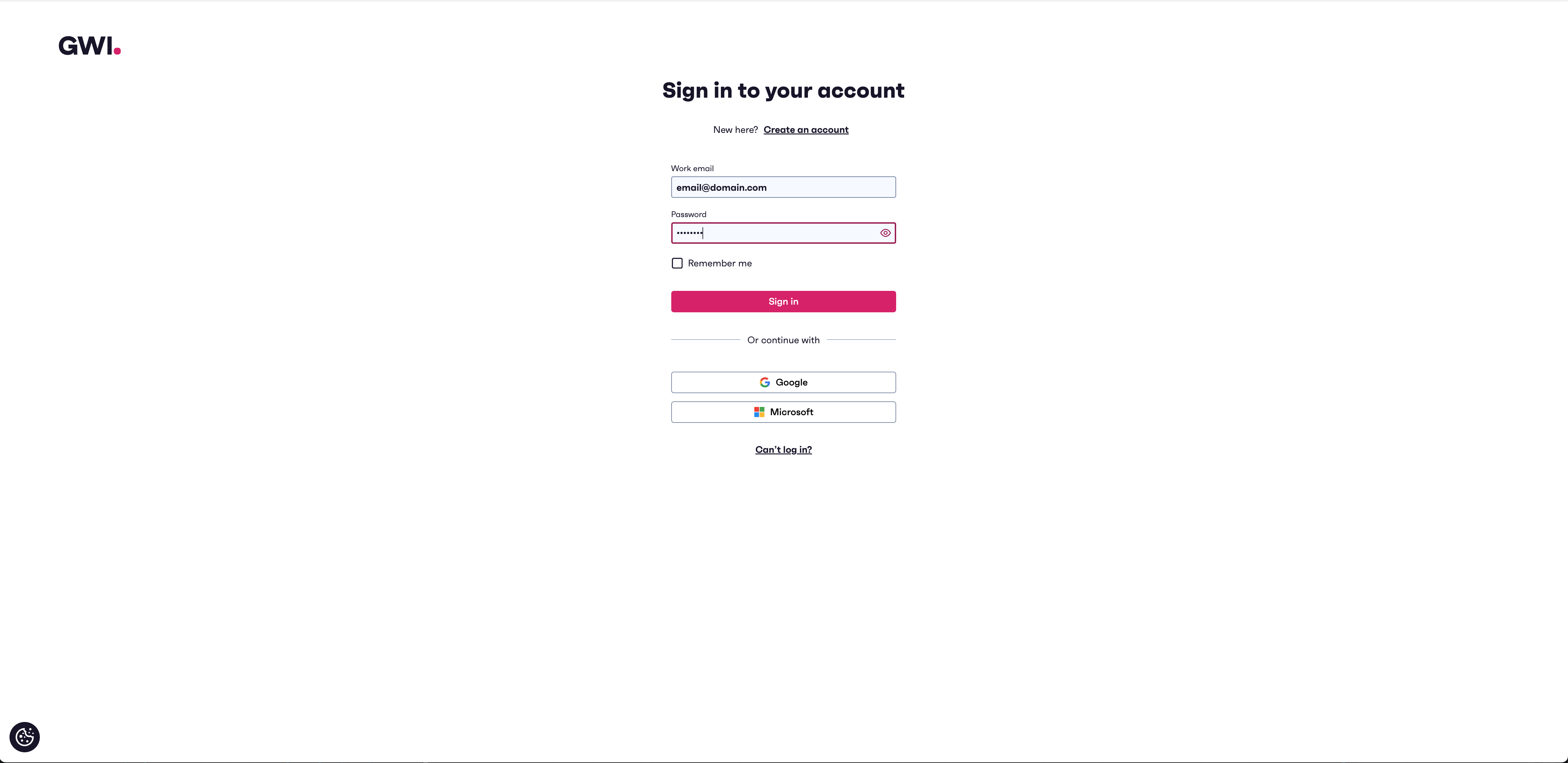 Review the requested permissions and scopes, then click **Allow** to authorize the connection. Copilot Studio handles token refresh automatically. Once the connection is created, you will be prompted to add the MCP tool and configure it in the agent.
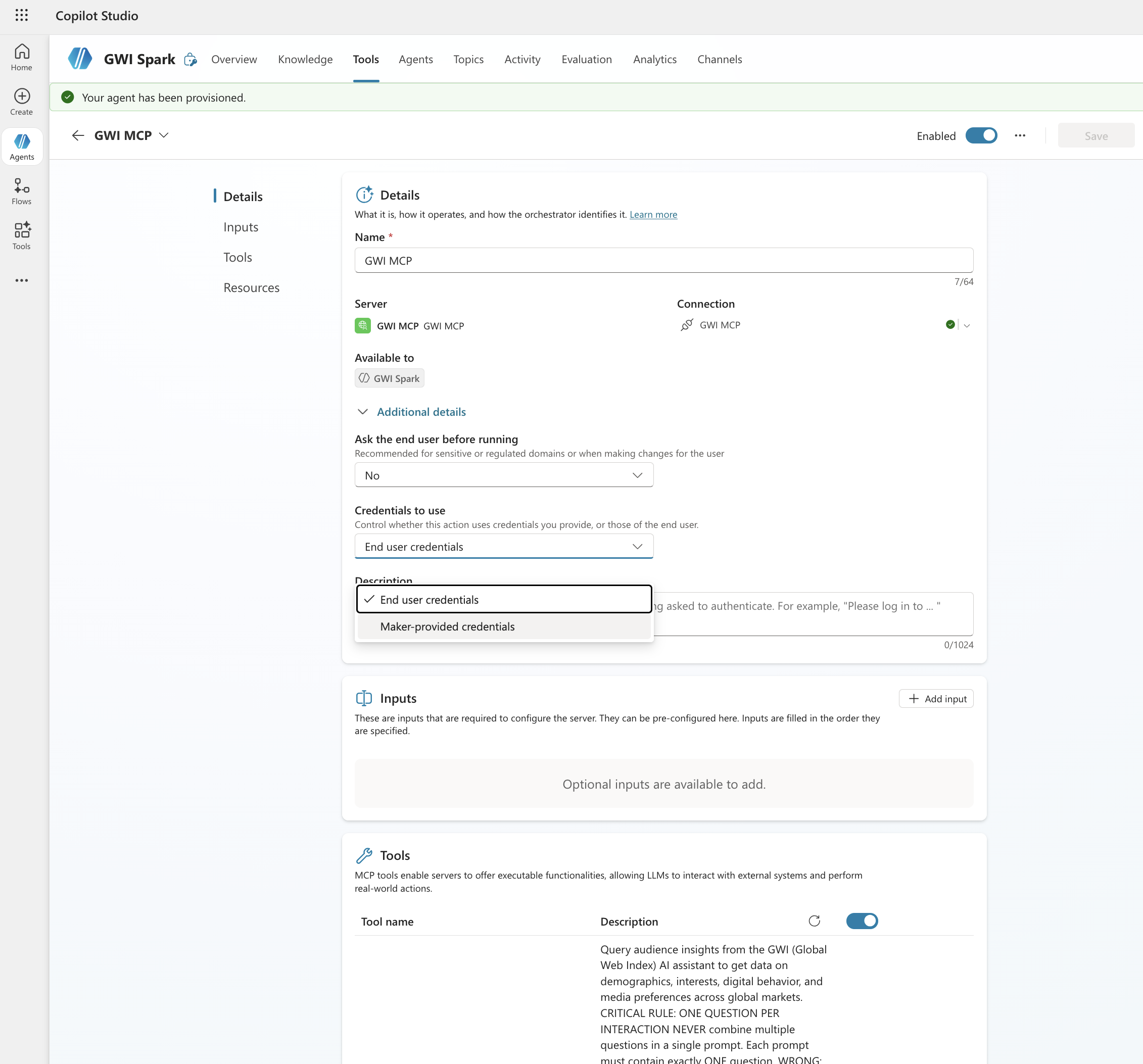
  6. You can select between two authentication modes when using MCP tools within your agent: **End user credentials** and **Maker-provided credentials**. This controls whether users should use their own GWI credentials when using the agent, or the credentials used by the tool builder.
  7. To maximise how your agent uses Spark, we recommend adding some instructions directly to the agent in Copilot. Below are some example instructions that you can add.
```markdown theme={null}
You have access to the GWI Spark tool (chat_gwi) which provides audience research data on demographics, interests, digital behavior, and media preferences across global markets.
Core rules:
- One question per call. Never combine multiple questions into a single prompt. Each chat_gwi call must contain exactly one focused question.
- Break down the user's request into multiple queries. When a user asks a broad question (e.g., "Tell me about Gen Z gamers in the US"), decompose it into 3–6 specific queries covering different angles, such as: demographics (age, gender, income, education), digital behaviors (platforms used, device preferences, time spent online), media consumption (social media, streaming, news sources), interests and attitudes (hobbies, values, brand affinities), purchase behavior (what they buy, how they discover products, what influences them), and marketing channels (what ad formats and channels are most effective for reaching them).
- Use chat_id to maintain context. Do NOT include chat_id on your first call. After the first call, always pass the exact chat_id returned in the response to all subsequent calls in the same research thread.
- Aggregate into a long-form overview. After completing all queries, synthesize the results into a comprehensive, well-structured report for the user. Organize the findings thematically (not by query), weave insights together into a coherent narrative, and highlight notable or surprising data points. Include specific percentages and index scores where available.
- Reference time periods. Each response includes quarterly time period metadata. Mention the data recency in your final overview (e.g., "Based on Q3 2024 – Q1 2025 data...").
Example workflow for "Help me understand PlayStation 5 owners in Japan":
Call 1: "What are the demographics of PlayStation 5 owners in Japan?" → (no chat_id)
Call 2: "What social media platforms do PlayStation 5 owners in Japan use?" → (use returned chat_id)
Call 3: "What are the top interests and hobbies of PlayStation 5 owners in Japan?" → (same chat_id)
Call 4: "What marketing channels are most effective for reaching PlayStation 5 owners in Japan?" → (same chat_id)
Call 5: "What are the media consumption habits of PlayStation 5 owners in Japan?" → (same chat_id)
Then combine all results into a single detailed overview for the user.
```
8. Finally, you can test GWI Spark MCP in your agent
7. To maximise how your agent uses Spark, we recommend adding some instructions directly to the agent in Copilot. Below are some example instructions that you can add.
```markdown theme={null}
You have access to the GWI Spark tool (chat_gwi) which provides audience research data on demographics, interests, digital behavior, and media preferences across global markets.
Core rules:
- One question per call. Never combine multiple questions into a single prompt. Each chat_gwi call must contain exactly one focused question.
- Break down the user's request into multiple queries. When a user asks a broad question (e.g., "Tell me about Gen Z gamers in the US"), decompose it into 3–6 specific queries covering different angles, such as: demographics (age, gender, income, education), digital behaviors (platforms used, device preferences, time spent online), media consumption (social media, streaming, news sources), interests and attitudes (hobbies, values, brand affinities), purchase behavior (what they buy, how they discover products, what influences them), and marketing channels (what ad formats and channels are most effective for reaching them).
- Use chat_id to maintain context. Do NOT include chat_id on your first call. After the first call, always pass the exact chat_id returned in the response to all subsequent calls in the same research thread.
- Aggregate into a long-form overview. After completing all queries, synthesize the results into a comprehensive, well-structured report for the user. Organize the findings thematically (not by query), weave insights together into a coherent narrative, and highlight notable or surprising data points. Include specific percentages and index scores where available.
- Reference time periods. Each response includes quarterly time period metadata. Mention the data recency in your final overview (e.g., "Based on Q3 2024 – Q1 2025 data...").
Example workflow for "Help me understand PlayStation 5 owners in Japan":
Call 1: "What are the demographics of PlayStation 5 owners in Japan?" → (no chat_id)
Call 2: "What social media platforms do PlayStation 5 owners in Japan use?" → (use returned chat_id)
Call 3: "What are the top interests and hobbies of PlayStation 5 owners in Japan?" → (same chat_id)
Call 4: "What marketing channels are most effective for reaching PlayStation 5 owners in Japan?" → (same chat_id)
Call 5: "What are the media consumption habits of PlayStation 5 owners in Japan?" → (same chat_id)
Then combine all results into a single detailed overview for the user.
```
8. Finally, you can test GWI Spark MCP in your agent 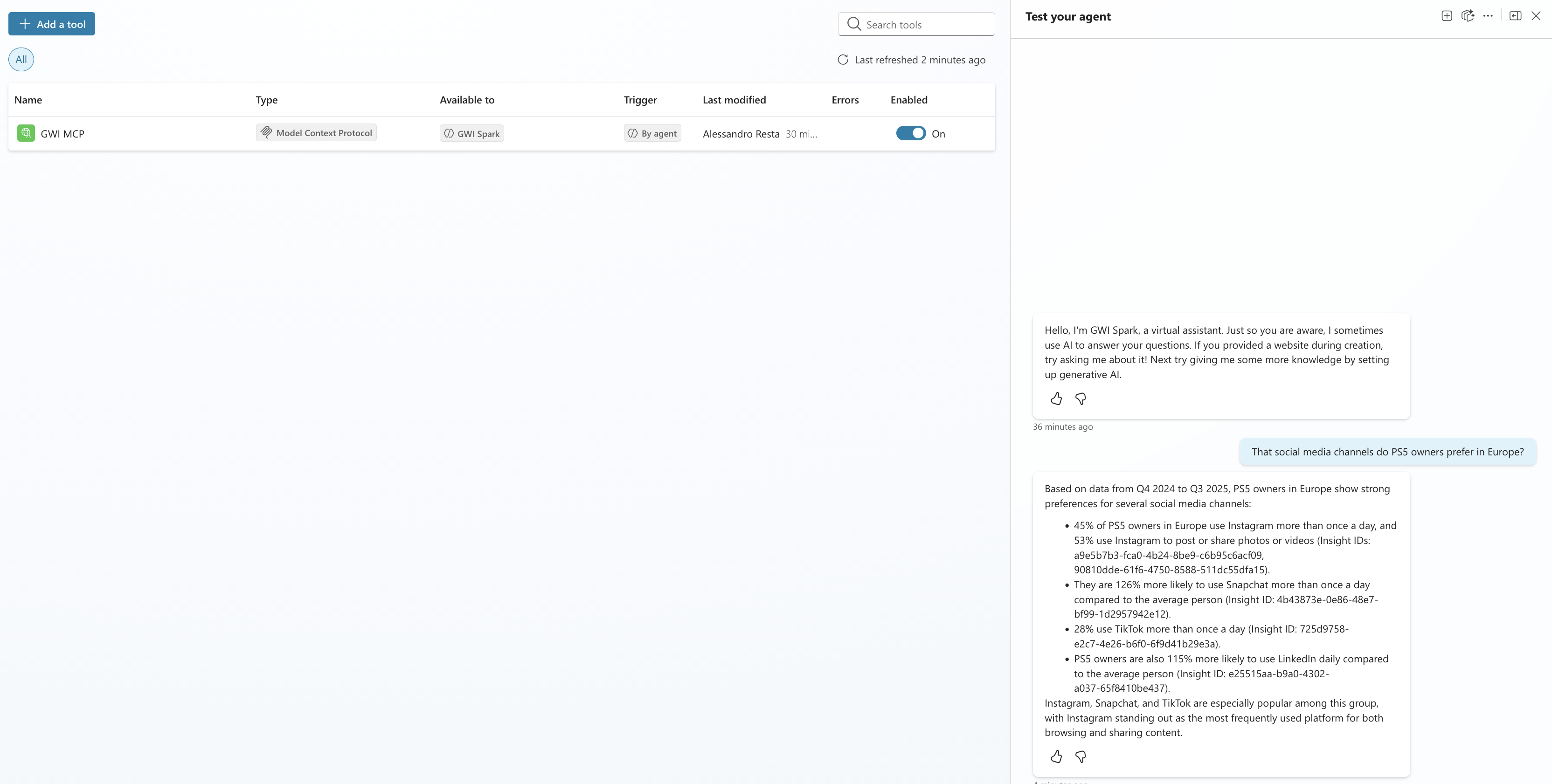 ## Publishing your agent to Microsoft Teams and Microsoft 365 Copilot
Once you've configured the GWI Spark MCP connector and tested your agent in Copilot Studio, the next step is making it available to users. Publishing to Teams or Microsoft 365 Copilot is a separate step from building; your agent won't appear anywhere until you explicitly publish and configure its availability.
### Step 1: Publish the agent
Before you can share your agent with anyone, you need to publish it at least once.
1. In Copilot Studio, open your agent.
2. In the left navigation menu, select **Publish**.
3. Review the summary and select **Publish** to confirm. After publishing, Copilot Studio packages your agent and makes it available to connect to channels. You'll need to republish any time you make significant changes to topics, actions, or the connector configuration.
## Publishing your agent to Microsoft Teams and Microsoft 365 Copilot
Once you've configured the GWI Spark MCP connector and tested your agent in Copilot Studio, the next step is making it available to users. Publishing to Teams or Microsoft 365 Copilot is a separate step from building; your agent won't appear anywhere until you explicitly publish and configure its availability.
### Step 1: Publish the agent
Before you can share your agent with anyone, you need to publish it at least once.
1. In Copilot Studio, open your agent.
2. In the left navigation menu, select **Publish**.
3. Review the summary and select **Publish** to confirm. After publishing, Copilot Studio packages your agent and makes it available to connect to channels. You'll need to republish any time you make significant changes to topics, actions, or the connector configuration. 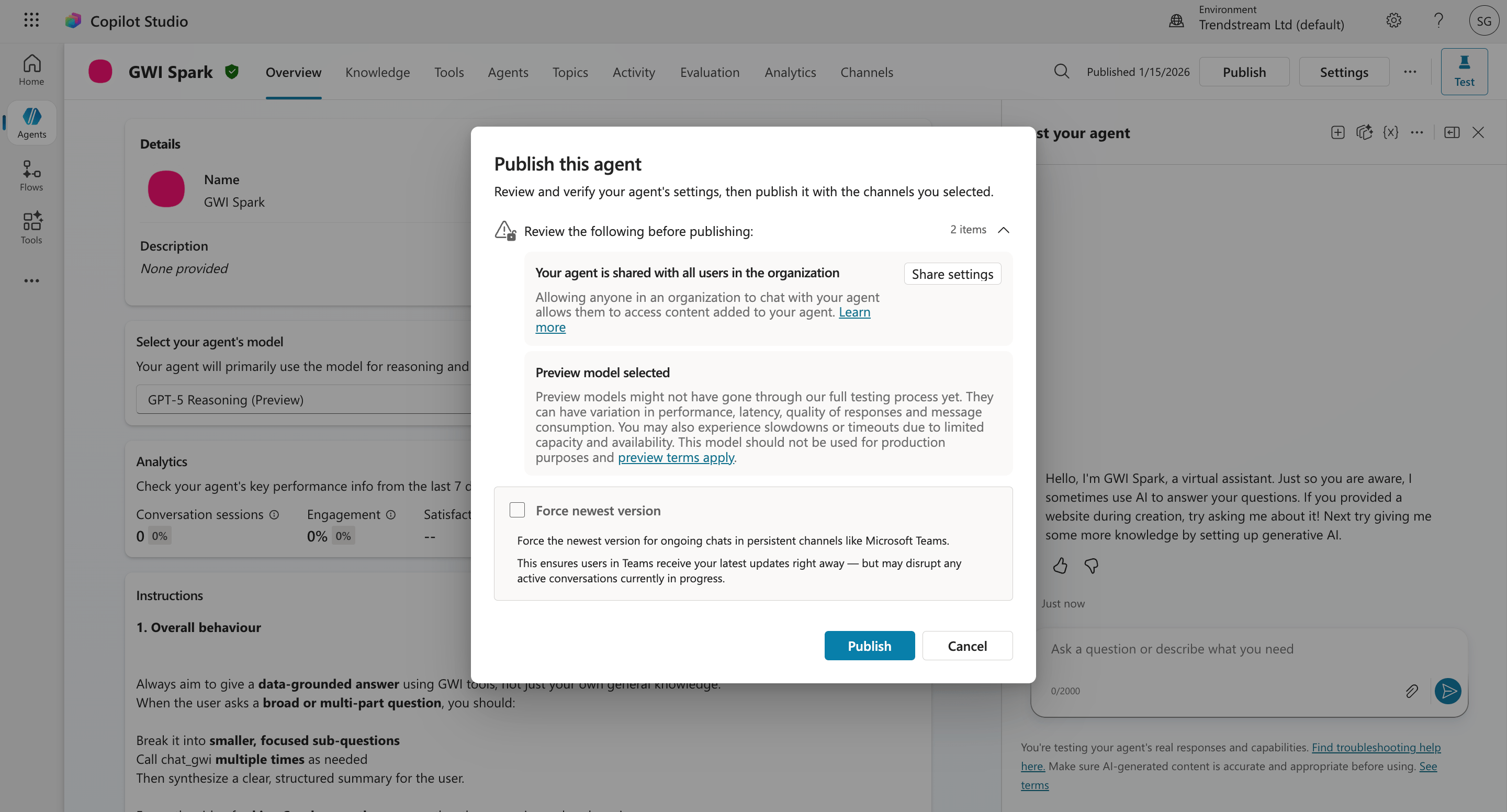 > 📖 [Key concepts: Publish and deploy your agent](https://learn.microsoft.com/en-us/microsoft-copilot-studio/publication-fundamentals-publish-channels) - Microsoft Learn
### Step 2: Connect to the Teams and Microsoft 365 Copilot channel
After publishing, you need to explicitly enable the Teams and Microsoft 365 Copilot channel:
1. In Copilot Studio, select **Channels** in the left navigation menu.
2. Select **Microsoft Teams and Microsoft 365 Copilot**.
3. Select **Turn on Teams** (if not already enabled).
4. Optionally configure the app icon, short description, and long description. These appear in the Teams app store if you distribute broadly.
5. Select **Save**.
> 📖 [Connect and configure an agent for Teams and Microsoft 365 Copilot](https://learn.microsoft.com/en-us/microsoft-copilot-studio/publication-add-bot-to-microsoft-teams) - Microsoft Learn
### Step 3: Choose your distribution method
Once the channel is enabled, select **Availability options** to decide how widely to distribute your agent. There are three main approaches depending on your rollout:
#### Option A: Share via installation link (quickest, small groups)
Best for internal pilots or sharing with a specific team.
1. In the Teams channel configuration panel, select **Availability options**.
2. Select **Copy link**.
3. Send the link to your intended users. They'll be prompted to install the agent directly in Teams.
**Note:** Installation links don't work in the Teams mobile app. If mobile users need access, use Option B or C instead.
> 📖 [Connect and configure an agent for Teams and Microsoft 365 Copilot](https://learn.microsoft.com/en-us/microsoft-copilot-studio/publication-add-bot-to-microsoft-teams) - Microsoft Learn
#### Option B: Show in "Built by your colleagues" (self-service, org-wide)
Makes your agent discoverable in the Teams app store under the **Built by your colleagues** section without requiring admin approval.
1. In **Availability options**, enable **Show in Built by Your Colleagues**.
2. Users in your organisation can search for and install the agent from the Teams app store themselves.
This is a good middle ground for broad internal rollouts where you don't need to go through an IT approval process.
#### Option C: Submit for admin approval (org-wide, managed deployment)
For wider rollouts where you want IT or a Microsoft 365 admin to control access, for example deploying the GWI agent to a whole department or the entire company.
1. In **Availability options**, select **Submit for admin approval**.
2. The agent appears in the **Requested agents** tab in the [Microsoft 365 admin center](https://admin.microsoft.com).
3. Your Microsoft 365 admin can then approve the agent, which makes it available under the **Built for your org** section of the Teams app store.
4. Admins can scope availability to specific users or groups before approving.
**Note:** If you've also enabled Microsoft 365 Copilot publishing, submitting for admin approval applies to the Microsoft 365 Agent Store as well, so one approval covers both surfaces.
> 📖 [Manage agents in the Microsoft 365 admin center](https://learn.microsoft.com/en-us/microsoft-365/admin/manage/manage-copilot-agents-integrated-apps?view=o365-worldwide) - Microsoft Learn 📖 [Publish agents for Microsoft 365 Copilot](https://learn.microsoft.com/en-us/microsoft-365/copilot/extensibility/publish) - Microsoft Learn
> 📖 [Key concepts: Publish and deploy your agent](https://learn.microsoft.com/en-us/microsoft-copilot-studio/publication-fundamentals-publish-channels) - Microsoft Learn
### Step 2: Connect to the Teams and Microsoft 365 Copilot channel
After publishing, you need to explicitly enable the Teams and Microsoft 365 Copilot channel:
1. In Copilot Studio, select **Channels** in the left navigation menu.
2. Select **Microsoft Teams and Microsoft 365 Copilot**.
3. Select **Turn on Teams** (if not already enabled).
4. Optionally configure the app icon, short description, and long description. These appear in the Teams app store if you distribute broadly.
5. Select **Save**.
> 📖 [Connect and configure an agent for Teams and Microsoft 365 Copilot](https://learn.microsoft.com/en-us/microsoft-copilot-studio/publication-add-bot-to-microsoft-teams) - Microsoft Learn
### Step 3: Choose your distribution method
Once the channel is enabled, select **Availability options** to decide how widely to distribute your agent. There are three main approaches depending on your rollout:
#### Option A: Share via installation link (quickest, small groups)
Best for internal pilots or sharing with a specific team.
1. In the Teams channel configuration panel, select **Availability options**.
2. Select **Copy link**.
3. Send the link to your intended users. They'll be prompted to install the agent directly in Teams.
**Note:** Installation links don't work in the Teams mobile app. If mobile users need access, use Option B or C instead.
> 📖 [Connect and configure an agent for Teams and Microsoft 365 Copilot](https://learn.microsoft.com/en-us/microsoft-copilot-studio/publication-add-bot-to-microsoft-teams) - Microsoft Learn
#### Option B: Show in "Built by your colleagues" (self-service, org-wide)
Makes your agent discoverable in the Teams app store under the **Built by your colleagues** section without requiring admin approval.
1. In **Availability options**, enable **Show in Built by Your Colleagues**.
2. Users in your organisation can search for and install the agent from the Teams app store themselves.
This is a good middle ground for broad internal rollouts where you don't need to go through an IT approval process.
#### Option C: Submit for admin approval (org-wide, managed deployment)
For wider rollouts where you want IT or a Microsoft 365 admin to control access, for example deploying the GWI agent to a whole department or the entire company.
1. In **Availability options**, select **Submit for admin approval**.
2. The agent appears in the **Requested agents** tab in the [Microsoft 365 admin center](https://admin.microsoft.com).
3. Your Microsoft 365 admin can then approve the agent, which makes it available under the **Built for your org** section of the Teams app store.
4. Admins can scope availability to specific users or groups before approving.
**Note:** If you've also enabled Microsoft 365 Copilot publishing, submitting for admin approval applies to the Microsoft 365 Agent Store as well, so one approval covers both surfaces.
> 📖 [Manage agents in the Microsoft 365 admin center](https://learn.microsoft.com/en-us/microsoft-365/admin/manage/manage-copilot-agents-integrated-apps?view=o365-worldwide) - Microsoft Learn 📖 [Publish agents for Microsoft 365 Copilot](https://learn.microsoft.com/en-us/microsoft-365/copilot/extensibility/publish) - Microsoft Learn 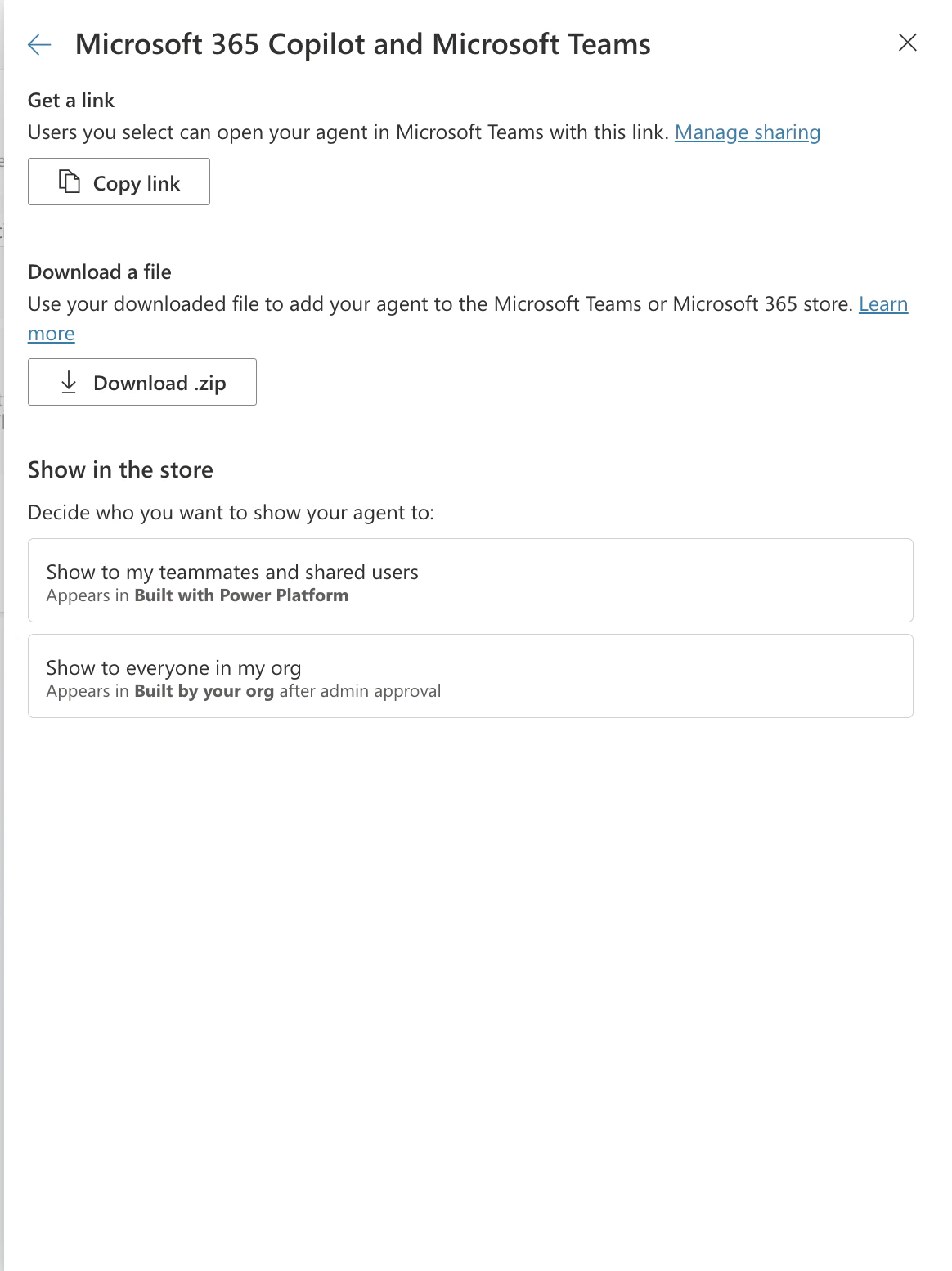 ### Where will the agent appear?
Depending on the distribution method chosen, users will find the agent in the following places:
| Surface | How users access it |
| :-------------------------------- | :------------------------------------------------------------------------ |
| **Microsoft Teams (desktop/web)** | Chat with the agent directly, or find it in the Teams app store |
| **Microsoft Teams (mobile)** | Only via app store listing; installation links don't work on mobile |
| **Microsoft 365 Copilot** | In the Copilot chat sidebar under **Agents**, once the channel is enabled |
| **Built by your colleagues** | Discoverable in Teams app store without admin action |
| **Built for your org** | Appears after admin approves via Microsoft 365 admin center |
> 📖 [Extend Microsoft 365 Copilot with agents](https://learn.microsoft.com/en-us/microsoft-copilot-studio/microsoft-copilot-extend-copilot-extensions) - Microsoft Learn
### Prerequisites and admin requirements
A few things need to be in place before users can install your agent in Teams:
* **Custom apps must be allowed** in your organisation's Teams Admin Center. If your IT team has disabled custom/sideloaded apps, the installation link and app store listing won't work. An IT admin needs to enable this under **Teams Admin Center > Teams apps > Setup policies**.
* **Microsoft 365 Copilot licence** is required for the agent to surface in Microsoft 365 Copilot chat. Teams-only access works without a Copilot licence.
* The **GWI Spark custom connector must be authenticated** in the agent before publishing. Users who install the agent will be prompted to sign in with their GWI credentials on first use.
> 📖 [Quickstart: Create and deploy an agent](https://learn.microsoft.com/en-us/microsoft-copilot-studio/fundamentals-get-started) - Microsoft Learn
***
## Troubleshooting
* **MCP server not visible** Verify the server configuration and confirm that you have proper workspace permissions.
* **Authentication failures** Confirm that your GWI account has Spark MCP access and that OAuth settings are correct.
* **Users can't find the agent in Teams** Check that custom apps are enabled in Teams Admin Center, and that the agent has been published (not just saved) in Copilot Studio.
* **The installation link isn't working on mobile** Installation links are desktop/web only. Point mobile users to the Teams app store listing instead (Options B or C above).
* **The agent asks for authentication every time** This is expected on first install. Once users authenticate with their GWI credentials, the connection is saved. If re-authentication keeps occurring, check the OAuth2 connection settings in the custom connector.
* **The agent hasn't appeared in Microsoft 365 Copilot** Confirm the Microsoft 365 Copilot channel is enabled (Step 2 above), and that the user has a Microsoft 365 Copilot licence. It can take up to 24 hours for a newly published agent to appear.
### Where will the agent appear?
Depending on the distribution method chosen, users will find the agent in the following places:
| Surface | How users access it |
| :-------------------------------- | :------------------------------------------------------------------------ |
| **Microsoft Teams (desktop/web)** | Chat with the agent directly, or find it in the Teams app store |
| **Microsoft Teams (mobile)** | Only via app store listing; installation links don't work on mobile |
| **Microsoft 365 Copilot** | In the Copilot chat sidebar under **Agents**, once the channel is enabled |
| **Built by your colleagues** | Discoverable in Teams app store without admin action |
| **Built for your org** | Appears after admin approves via Microsoft 365 admin center |
> 📖 [Extend Microsoft 365 Copilot with agents](https://learn.microsoft.com/en-us/microsoft-copilot-studio/microsoft-copilot-extend-copilot-extensions) - Microsoft Learn
### Prerequisites and admin requirements
A few things need to be in place before users can install your agent in Teams:
* **Custom apps must be allowed** in your organisation's Teams Admin Center. If your IT team has disabled custom/sideloaded apps, the installation link and app store listing won't work. An IT admin needs to enable this under **Teams Admin Center > Teams apps > Setup policies**.
* **Microsoft 365 Copilot licence** is required for the agent to surface in Microsoft 365 Copilot chat. Teams-only access works without a Copilot licence.
* The **GWI Spark custom connector must be authenticated** in the agent before publishing. Users who install the agent will be prompted to sign in with their GWI credentials on first use.
> 📖 [Quickstart: Create and deploy an agent](https://learn.microsoft.com/en-us/microsoft-copilot-studio/fundamentals-get-started) - Microsoft Learn
***
## Troubleshooting
* **MCP server not visible** Verify the server configuration and confirm that you have proper workspace permissions.
* **Authentication failures** Confirm that your GWI account has Spark MCP access and that OAuth settings are correct.
* **Users can't find the agent in Teams** Check that custom apps are enabled in Teams Admin Center, and that the agent has been published (not just saved) in Copilot Studio.
* **The installation link isn't working on mobile** Installation links are desktop/web only. Point mobile users to the Teams app store listing instead (Options B or C above).
* **The agent asks for authentication every time** This is expected on first install. Once users authenticate with their GWI credentials, the connection is saved. If re-authentication keeps occurring, check the OAuth2 connection settings in the custom connector.
* **The agent hasn't appeared in Microsoft 365 Copilot** Confirm the Microsoft 365 Copilot channel is enabled (Step 2 above), and that the user has a Microsoft 365 Copilot licence. It can take up to 24 hours for a newly published agent to appear.