> ## Documentation Index
> Fetch the complete documentation index at: https://api.globalwebindex.com/docs/llms.txt
> Use this file to discover all available pages before exploring further.

# Desktop extension

## Overview

The Spark MCP can be easily integrated with Claude desktop through our Claude Desktop Extension

## How to use

The integration can be enabled using the following steps:

1. <a href="https://github.com/GlobalWebIndex/spark-mcp-dxt/releases/latest/download/spark-mcp.dxt" download> Download Claude Desktop Extension </a>
2. Open Claude Desktop and navigate to **Settings->Extensions->Advanced settings**
3. Click **Install Extension** on the Extension Developer
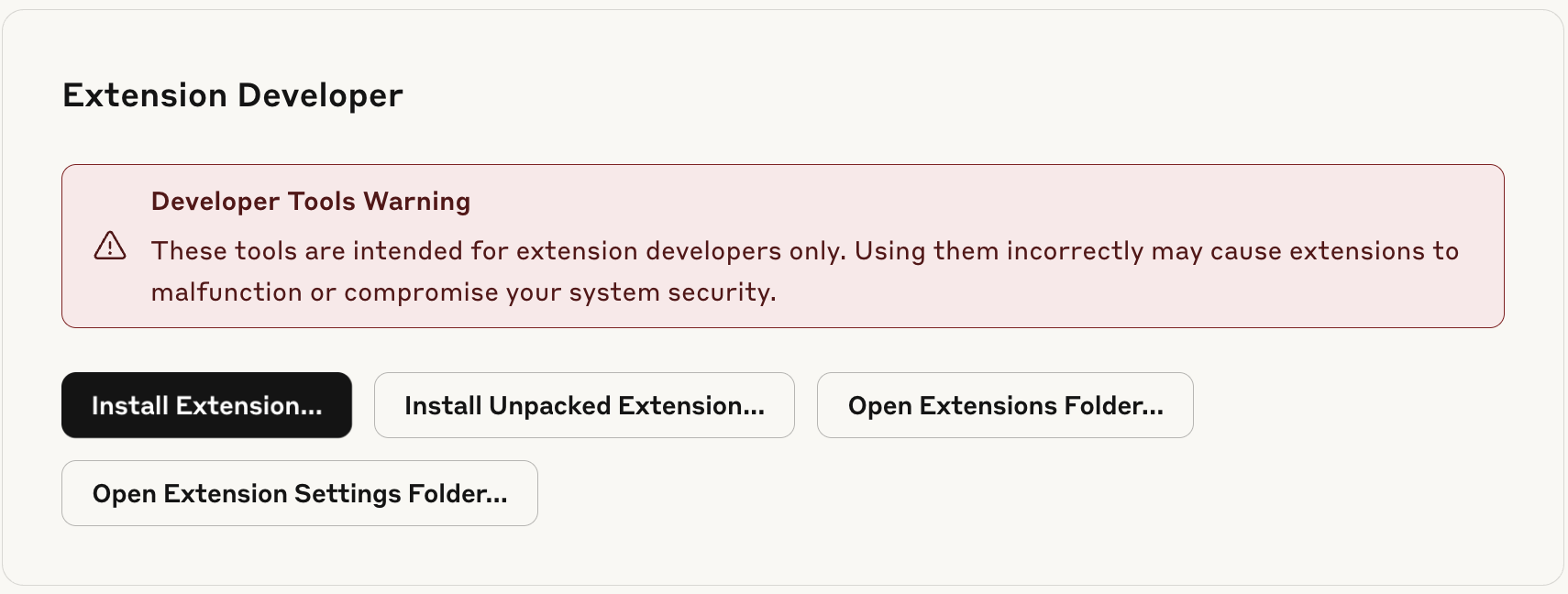
   <img src="https://mintcdn.com/gwi-c45e8f9c/lDVzA75IGIMfShVe/assets/images/claude_ext_dev.png?fit=max&auto=format&n=lDVzA75IGIMfShVe&q=85&s=77d86f8710f123e516d50de534a099fa" alt="Claude Extension Install" width="1710" height="648" data-path="assets/images/claude_ext_dev.png" />
4. Choose the downloaded extension file and click **Install**

   <img src="https://mintcdn.com/gwi-c45e8f9c/lDVzA75IGIMfShVe/assets/images/claude_ext_install.png?fit=max&auto=format&n=lDVzA75IGIMfShVe&q=85&s=d0d765cda45da3d3f752e667bc0c942e" alt="Claude Extension Install" width="1400" height="216" data-path="assets/images/claude_ext_install.png" />
5. During installation provide your Spark API token
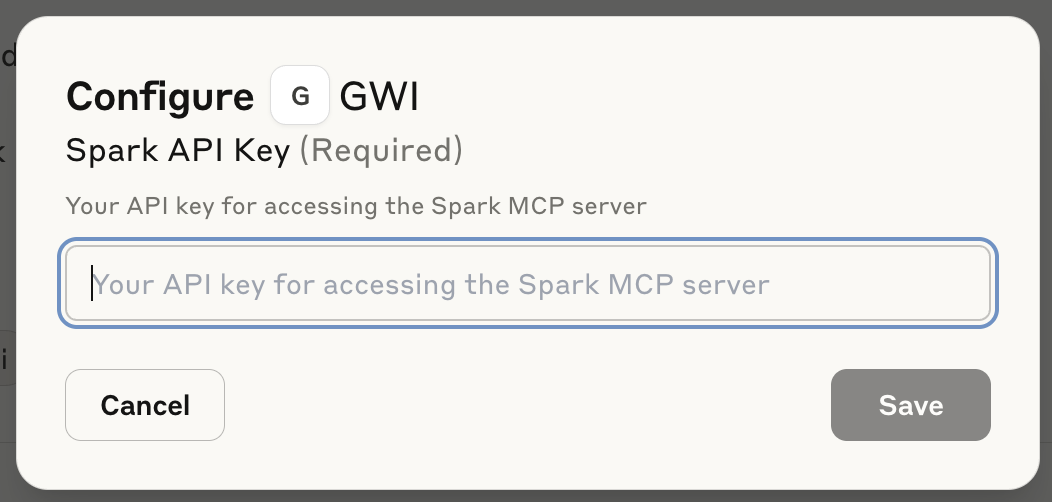
   <img src="https://mintcdn.com/gwi-c45e8f9c/lDVzA75IGIMfShVe/assets/images/claude_ext_configure.png?fit=max&auto=format&n=lDVzA75IGIMfShVe&q=85&s=5955fb98cd671611e84f7bf62147a9dd" alt="Claude Extension Configure API token" width="1052" height="502" data-path="assets/images/claude_ext_configure.png" />
6. Enable the extension to use it in Claude chat

   <img src="https://mintcdn.com/gwi-c45e8f9c/lDVzA75IGIMfShVe/assets/images/claude_ext_enable.png?fit=max&auto=format&n=lDVzA75IGIMfShVe&q=85&s=79fa63b999293b833fee12644e5a0d01" alt="Claude Extension Enable" width="1332" height="116" data-path="assets/images/claude_ext_enable.png" />
