> ## Documentation Index
> Fetch the complete documentation index at: https://api.globalwebindex.com/docs/llms.txt
> Use this file to discover all available pages before exploring further.
# Custom connector
## Overview
The Spark Custom Connector can be easily integrated with Claude on both the web and desktop versions.
There are two types of actors for this integration:
* **Team Admin**: adds the GWI connector integration for their organisation.
* **Team Members**: connect to the GWI connector by using their GWI account.
Reference: [Claude official doc](https://support.claude.com/en/articles/11175166-getting-started-with-custom-connectors-using-remote-mcp#h_3d1a65aded)
## How to use
Below you can find the detailed steps for both the **Team Admin** and **Team Member** roles in order to enable the connector in your workspace.
### Team Admin
1. Go to `Admin Settings -> Connectors -> Add custom connector`
2. Input the following information:
* Name: `GWI Spark`
* URL: `https://api.globalwebindex.com/v1/spark-api/mcp`
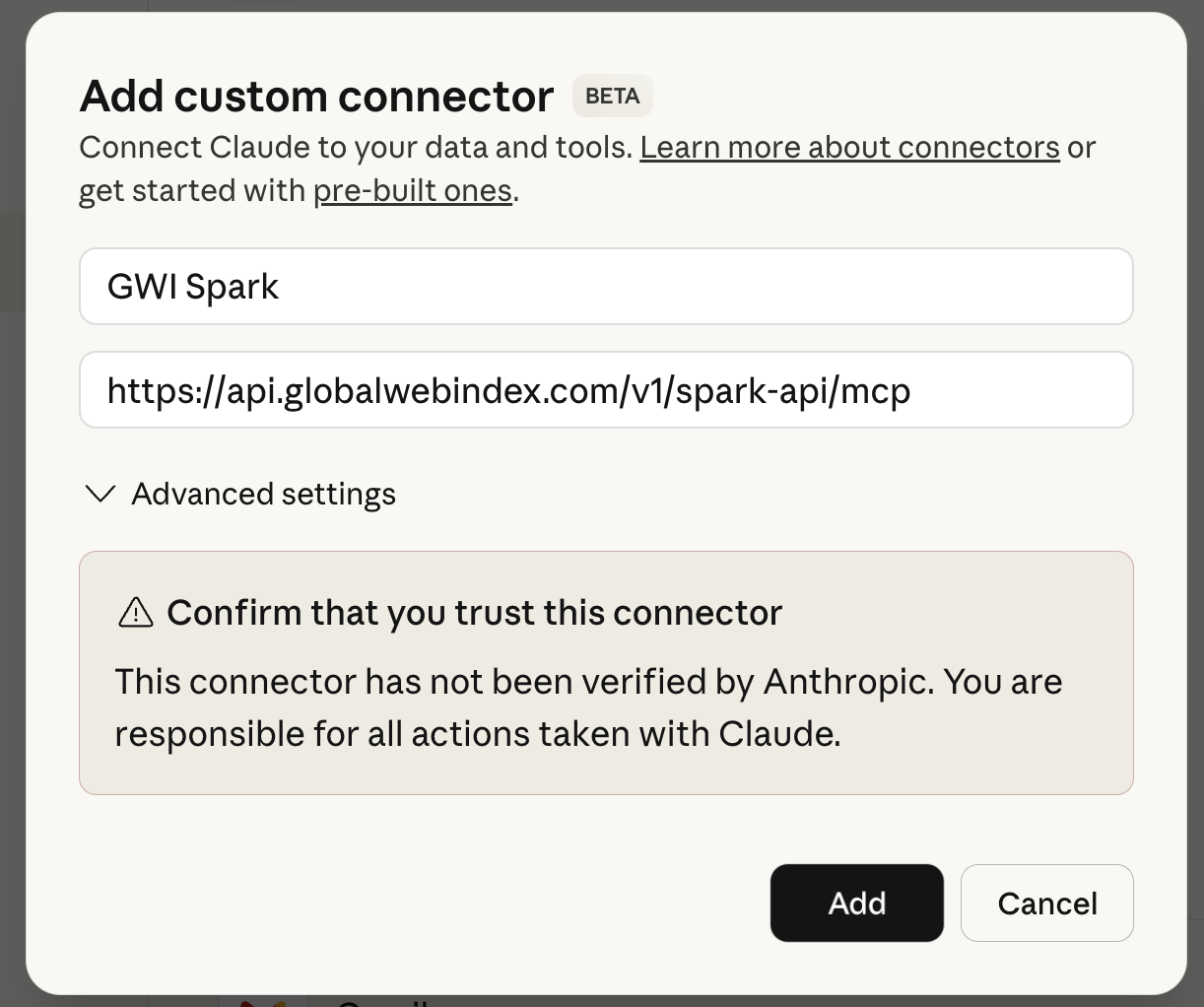 3. After the setup, you should be able to see the `GWI Spark` custom connector listed.
### Team Member
1. Go to `Settings -> Connectors`
2. Locate the `GWI Spark` custom connector in the list and click `Connect`
3. After the setup, you should be able to see the `GWI Spark` custom connector listed.
### Team Member
1. Go to `Settings -> Connectors`
2. Locate the `GWI Spark` custom connector in the list and click `Connect`
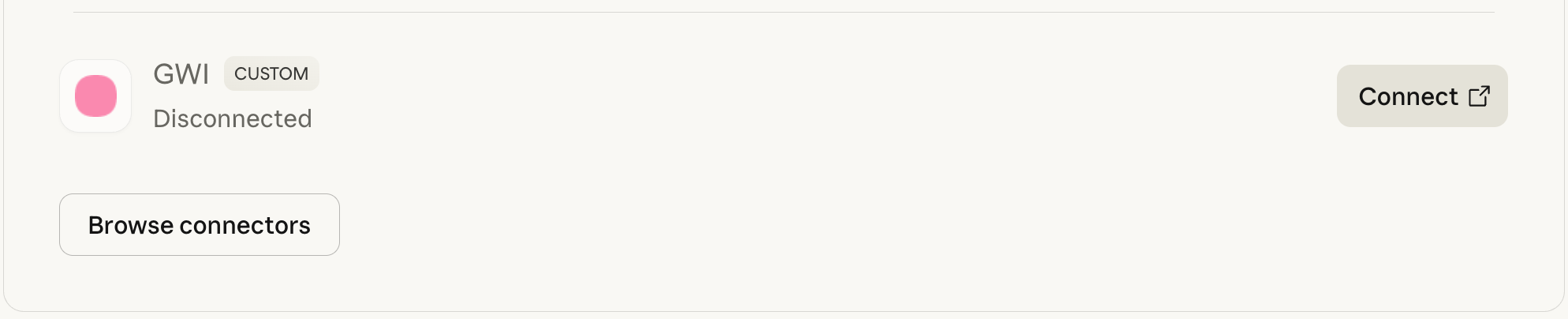 3. You'll be redirected to the GWI sign-in page. Use your GWI credentials to sign in. **If you don't have a GWI login, click Sign up to create one**
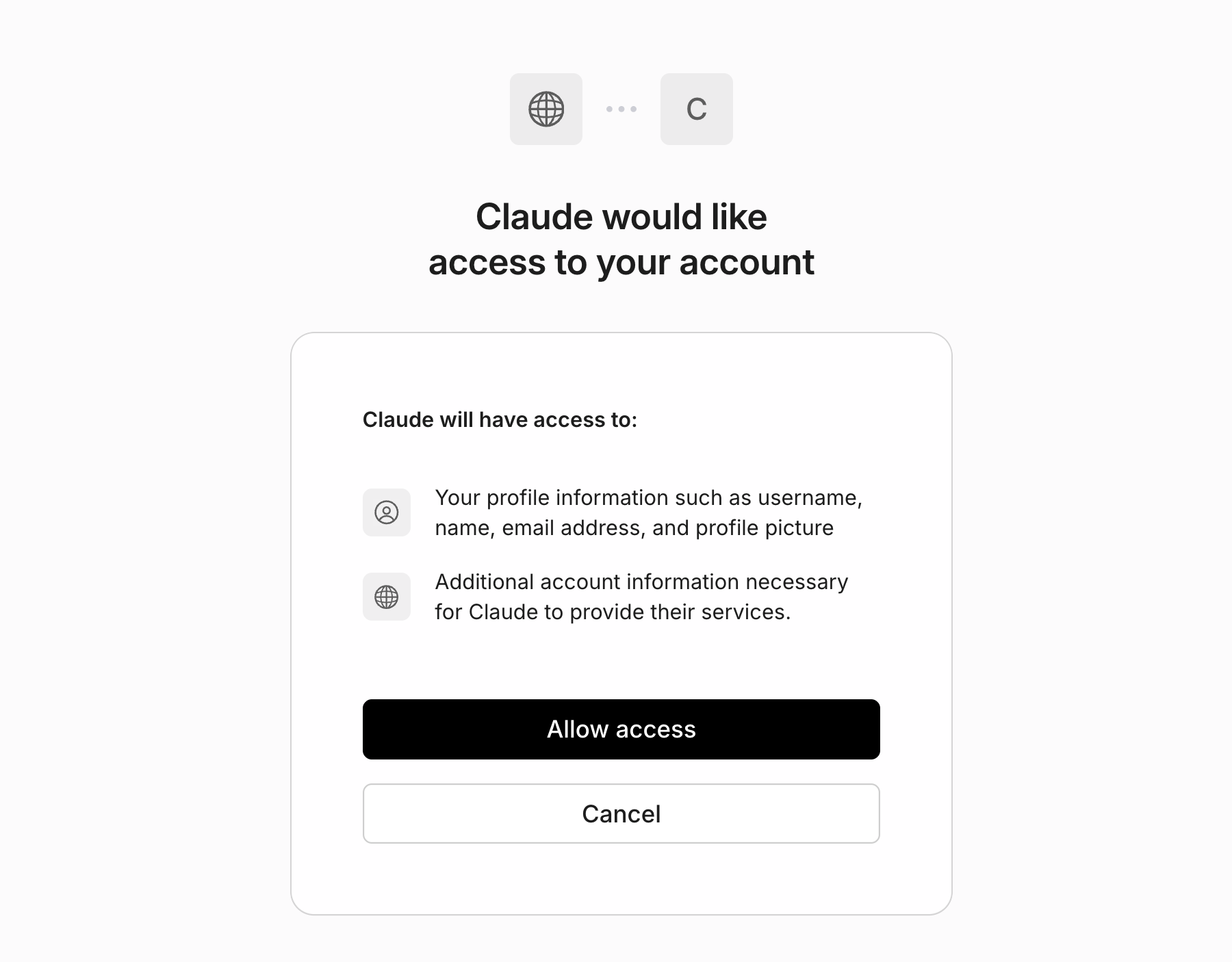
 4. After successful signin, you need to allow access to Claude
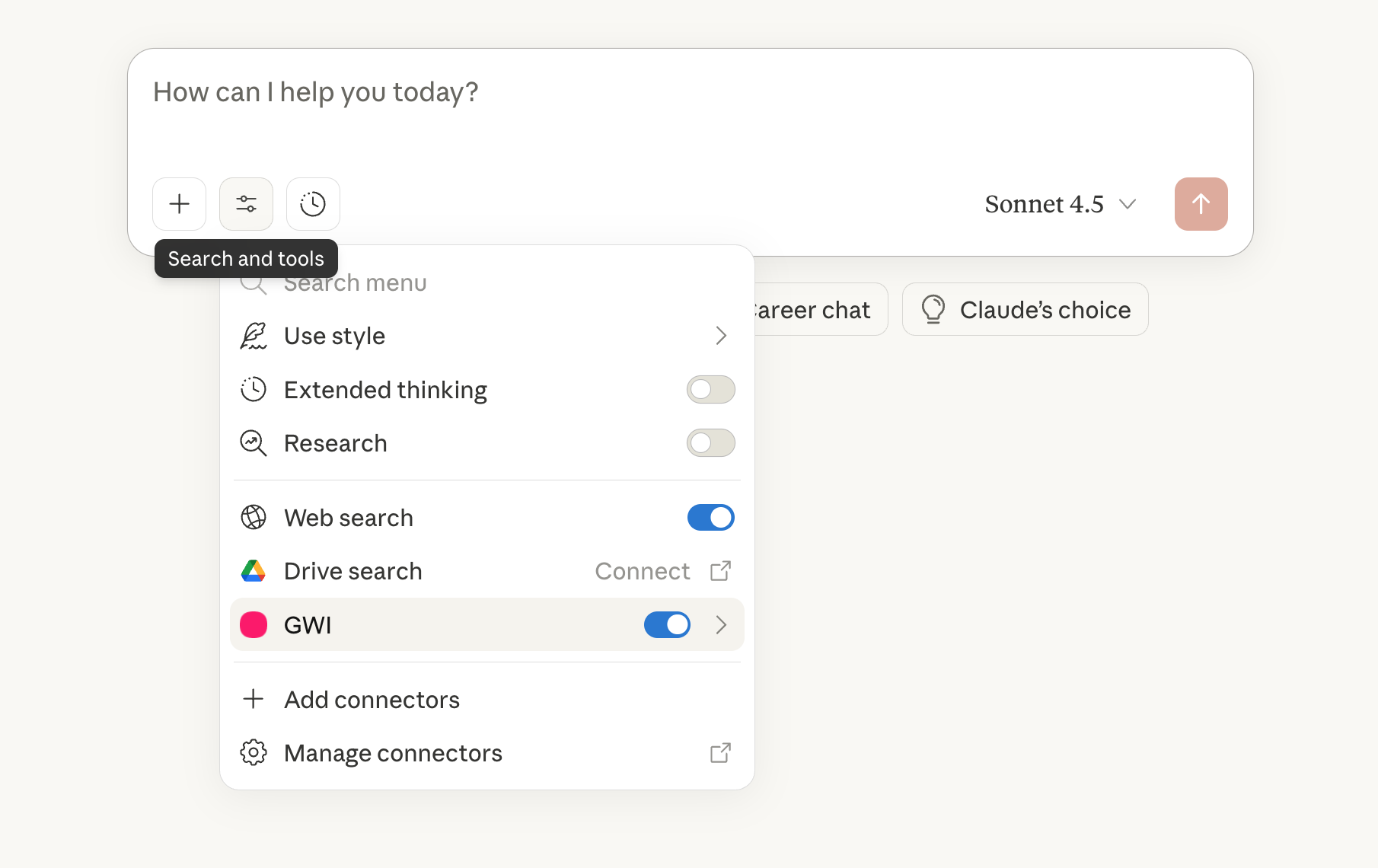
 5. Finally you should be able to see the `GWI Spark` custom connector in the connectors list when you are on the chat interface
 ## Troubleshooting
* **Access denied during sign-in**: Confirm with your GWI contact that your email address or domain is enabled for your organization's Spark MCP access.
* **OAuth errors**: Clear your browser cache or try connecting from an incognito/private browsing window.
## Troubleshooting
* **Access denied during sign-in**: Confirm with your GWI contact that your email address or domain is enabled for your organization's Spark MCP access.
* **OAuth errors**: Clear your browser cache or try connecting from an incognito/private browsing window.